Security information is defined in terms of users, groups, locks, keys and areas.
- Users are DeltaV and Windows users. You can assign users to one or more groups.
- Groups have access to a specific subset of the keys available in a site.
- Locks prevent users from changing specific module parameters and parameter fields. Locked objects can only be accessed by users who have the appropriate key. Locks are assigned using DeltaV Explorer or Control Studio.
- Locks and keys are also
associated with some user functions. For example, the appropriate keys enable
users to:
- Use AMS Device Manager device configuration and calibration features (calibration requires appropriate AMS Device Manager licenses).
- Make changes to the configuration database and save Process History View configuration.
- Download configuration and setup data to system nodes.
- Use the database administrator tools to create, copy and rename databases.
- Keys can be held directly by the user or indirectly through association with a group that owns the key. Keys provide permission to access locked parameters or parameter fields. (The granting of keys is done with the DeltaV User Manager.)
- A user's association with a group or ownership of a key can be global or limited to the scope of a plant area or set of plant areas.
- Areas - DeltaV system users can be granted different sets of keys in each area. This feature can be used to grant parameter write access to operators for control modules within the operators' responsibility, yet withhold access to other similar modules outside their responsibility.
Many of the changes you make in DeltaV User Manager require that you perform a workstation download in DeltaV Explorer. Before you close the DeltaV User Manager, a message appears reminding you to download the workstation to ensure that all security changes take effect.
Start User Manager from the taskbar by clicking .
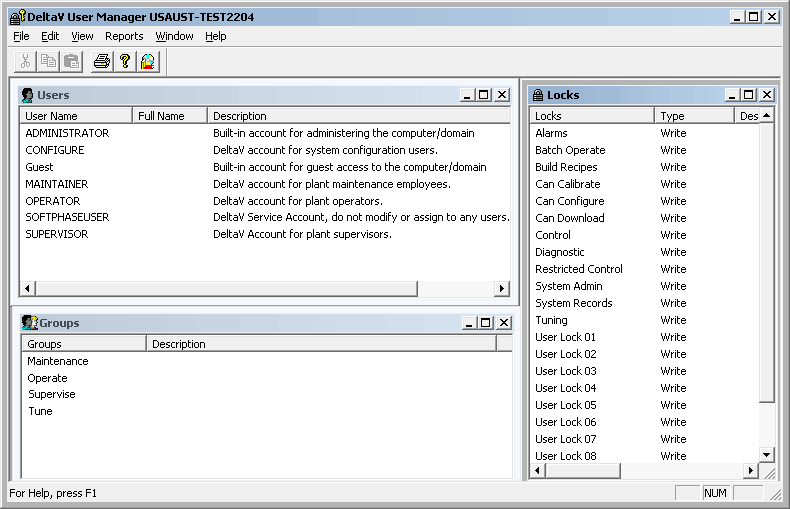
The User Manager window gives you three views; Users, Locks, and Groups. You can open, close, and resize each pane. These views are available under the View menu.