The database properties are only available when the SQL server is running. If the SQL server has been stopped you will receive an error. You must restart the SQL server and restart the DeltaV Batch Historian Administrator. If the SQL server has been stopped and restarted, you will still need to restart the DeltaV Batch Historian Administrator. The DeltaV Batch Historian Administrator displays an error (for example, Unable to create record set) when the connection to the SQL server is or has been lost.
Database Space
This is configured in DeltaV Explorer when setting up the Batch Historian on a node.
The Batch Historian allocates 3% of the space in each storage database for administrative overhead. Therefore, the Batch Historian stops recording on a single storage database when it reaches 97% of the space allocated. The Batch Historian continues recording in the other storage databases until all the storage databases reach 97% capacity, at which time the Batch Historian stops recording any data.
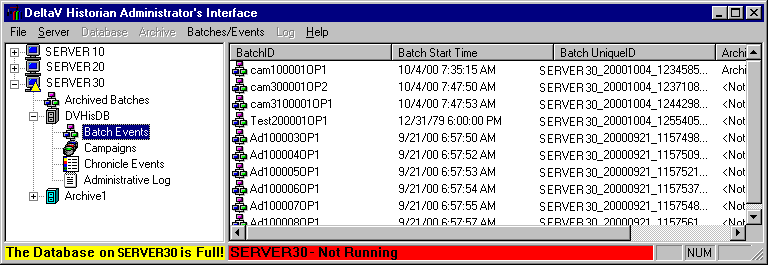
When the total database usage exceeds 80% of the allocated size of all the output databases combined, DeltaV Diagnostics shows the Batch Historian subsystem's overall integrity as Bad. The status bar lists the name of the database that is full and also reflects the server's status. The Batch Executive will continue to generate events and buffer them to the Batch Historian's database in an .evt file.
Allows Archiving of Equipment Hierarchy -- When selected, the Equipment Hierarchy information is archived with the corresponding batch data. The default is enabled. This should be enabled when using DeltaV History Analysis.
Servers
The configured servers are listed on this dialog. The information includes server type, server node and whether the server is currently connected.
You can have multiple servers listed, however, you can only connect to one server at a time with the DeltaV Batch Historian Administrator's Interface.
Statistics
This tab displays the total accumulated database collection statistics. This includes statistics on batch messages, event messages, and total messages received, processed and discarded.
You can reset the statistics collection from this tab by clicking the Reset button. That starts the collection time over and resets all of the values to zero, giving you an indication of how much data is being processed over time. This information can be useful for diagnostic purposes.
Additionally, there are two statistics that provide information integral to normal batch usage. They are; duplicate messages, and unidentified messages.
Duplicate messages report that the historian is reading some data multiple times. This can occur if a batch evt file is taken out of the journals directory and then put back into the journals directory. Duplicate messages are not stored a second time.
Unidentified messages report that the Batch Historian is reading messages for which it has not been programmed to process. Such messages include user created alarm types since the Batch Historian can not have a definition for them. The unidentified messages are stored in the UnhandledBatchMsg and UnhandledEventMsg to enable troubleshooting. The events are also reported in the batcheventview and eventoverview but are identified as unhandled to provide visibility to the event.