Device Signal Simulator application

Simulate device signals with the Device Signal Simulator

Once you have followed the set up process, use the Device Signal Simulator to generate values for you control logic.
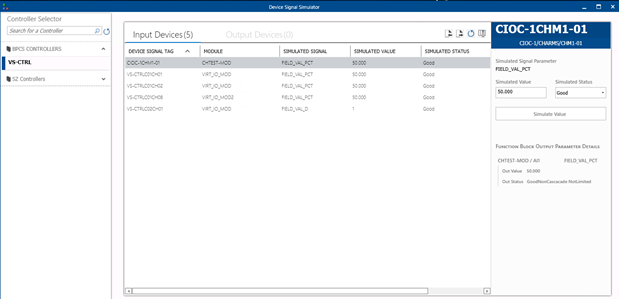
  1. Open the Device Signal Simulator (StartDeltaV EngineeringDevice Signal Simulator).
    The system displays the application.

  2. Verify that the device signal tag assignments are visible. Note that the interface lists the DSTs, the controllers, parameters, and associated values. If you do not see your DSTs, review the setup steps. Also, make sure your module has been saved and downloaded and your controller has been downloaded.
  3. To generate a value, select a Device Signal Tag, enter a value in the Simulated Value and/or Status fields, then click Simulate Value.

    You can observe the value change in Control Studio using On-Line or Debug mode. You can also observe the value change in DeltaV Operate.

Note

In order to use the control logic with physical hardware, you must decommission the virtual controller or CSLS, commission the placeholder to a physical controller or CSLS, and download that controller or CSLS.