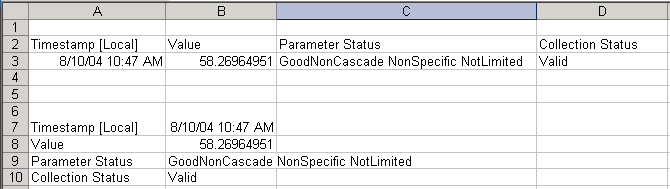
Normally, column headers are positioned in the first row of the array. You can use the Transpose function to switch the rows and columns so that the column headers are listed in the first column.
For example, you could start with a single value function in standard format that produces a 2R x 4C array:
=DVCHValue("localhost","TagF540",TRUE,"Timestamp,GMT;Value;Parameter Status;Collection Status","Local",0,"08/10/2004 10:47:00")
Then, after selecting a new rectangular region 4R x 2C, you could enter the following array formula. (You can cut and paste the original formula and then edit it.)
=TRANSPOSE(DVCHValue("localhost","TagF540",TRUE,"Timestamp,GMT;Value;Parameter Status;Collection Status","Local",0,"08/10/2004 10:47:00"))
After reformatting the timestamp to show a date and time, and adjusting the column widths, the results would look like the following:
If you create such a function you can edit it from the edit function dialog, and the dialog will keep it transposed. (It may be necessary to reformat cells if you have done any prior reformatting.) The data will appear transposed in the Try It window, and the required range in the Worksheet section of the configure dialog will also show the array as transposed.