Take a few minutes and read the next few pages to learn about the Control Studio application before you open Control Studio and create a module. The Control Studio window has different sections called views, which display the characteristics of a module. Each view can be closed or resized individually so that you can optimize the size of the view you are working in.
You can set the size of the overall window by dragging the sides or corners. Then, on the View tab, in the Windows group, click Arrange to automatically reshape the views to a predefined arrangement.
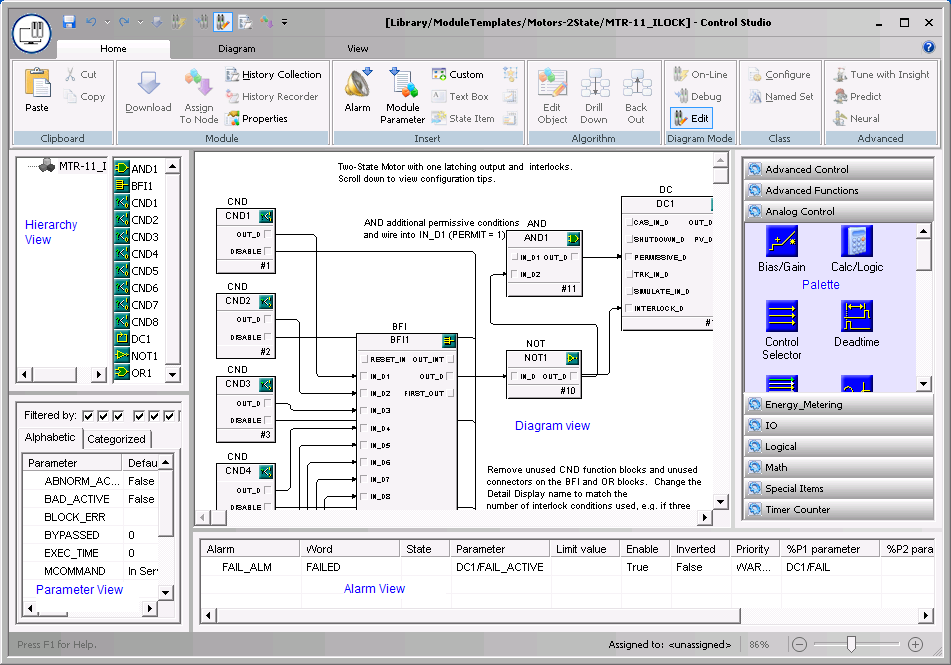
The figure above shows the default arrangement of the Control Studio views. The views are:
-
Diagram View - used to create a module's control algorithm graphically on a diagram (includes a palette of items that can be placed on the diagram)
-
Parameter View - used to define the module's characteristics, alarm limits, default values, mode, and other parameters. You can filter the parameter list to quickly access the parameters you need. Refer to the Control Studio online help for information on filtering parameters.
-
Hierarchy View - used to see a hierarchy of the elements that make up the module
-
Alarm View - used to see the alarms that are defined, their limits, priorities, and other information
The palette shows the items that can be dragged to the diagram. Several palettes are available. You can change to a different palette by clicking the palette name.
If the palette is not showing, point to the edge of the Diagram window, hold down the left mouse button and drag the side of the window to resize it to show the palette column.
The palette can be moved from one side of the Diagram View to the other. To do this, point anywhere in the palette, right-click, and then select Switch Sides from the menu.
The items in the palette can be displayed with either large or small icons. To change the selection, point anywhere in the palette, right-click, and then select the desired icon size.