You must be logged into Windows and DeltaV as an administrator in
order to add users. In a domain environment, you must be a domain administrator
to create domain-level accounts.
Click
File → New → User.
The
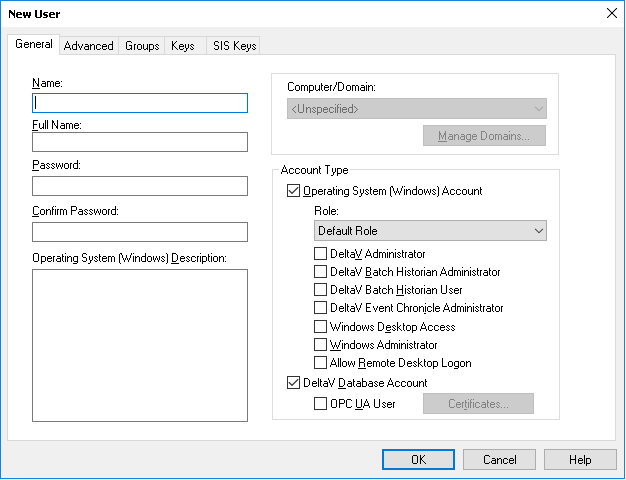
New User dialog appears.
Type the
Name, usually only the last name, and tab to
the next field or click the next field. Do not press
Enter or click the
OK button until you have made all your
selections for this user account.
Note
If you press
Enter, the new user account is created
with all the default settings of Windows and DeltaV Account types, but no
Download or Configure privileges. To add these privileges, you need to edit the
user account properties by clicking the user's name and selecting
File → Properties.
Type the
Full Name and tab to the next field.
You must enter a password and inform the person of the password.
Confirm the password in the next field.
Select both
Account Types.
DeltaV accounts are global. Windows accounts are
specific to each workstation. A user's DeltaV account is only usable on a
workstation when the Windows account is also enabled for that user on the
workstation. You must enable a Windows account for each DeltaV user on every
workstation on which that user runs the DeltaV system.
Select a role for this user. Roles are used to assign users to
groups and to assign permissions and Group Policy Objects.
Click the
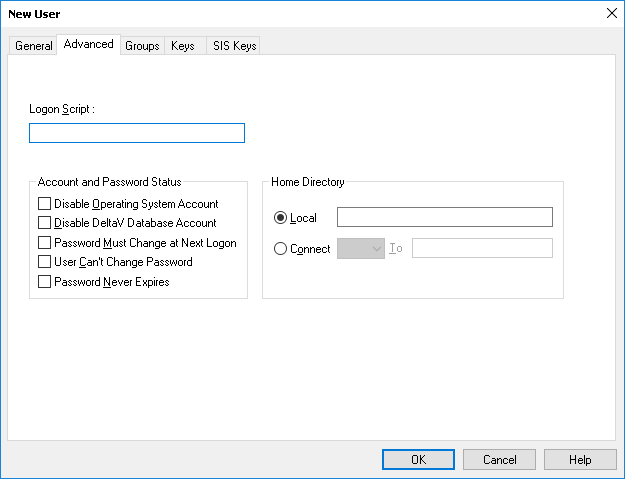
Advanced tab.
Fill in any other information as appropriate for your usage
environment.
If the user should have Download or Configure privileges, click
the
Keys tab and add these privileges. (These tabs
are described briefly in topic:
The Groups and Keys tabs.)