This procedure explains how to use the DeltaV Operate interface to create a push button to start the SFC. Another way to assign the Start command to the push button is to select and right-click the push button, select Edit Script, and then edit the Visual Basic script for the Push Button object.
-
 Click the
Text tool on the
Toolbox and type the text to appear on the
button: Start Discharge.
Click the
Text tool on the
Toolbox and type the text to appear on the
button: Start Discharge.
-
 Select the push button and click
the
Task Wizard button on the toolbar.
Select the push button and click
the
Task Wizard button on the toolbar.
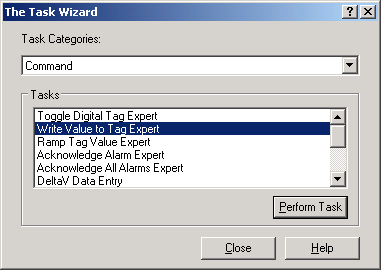
- Select Command as the Task Category and scroll down to Write Value to Tag Expert in the Tasks list.
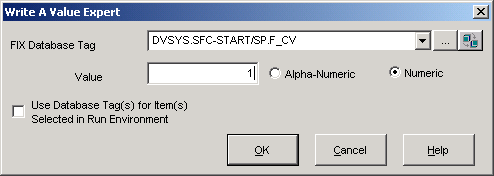
- Click Numeric and type 1 in the Value field.