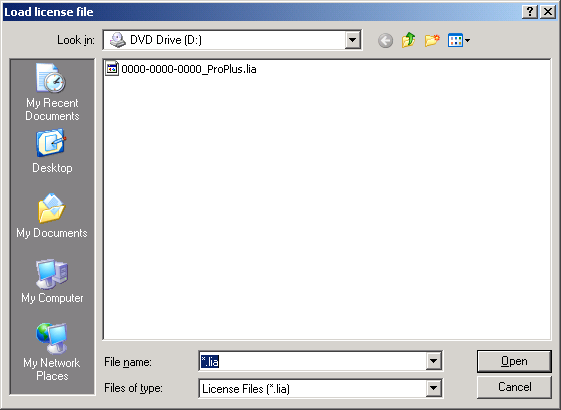
Select the license file to load, and then click
Open.
Tip
You can also select
System
Configuration → Setup → Licenses
in the left pane of the Explorer, right-click, and then select
Load License File.
Read the information in the Terms and Conditions dialog and, if
you agree, enter the requested information, and then click
Next. If you do not agree, return the license
disk and System Identifier to Emerson.
Fill in the
User Contact Information dialog, and then click
Next.
Fill in the
End User Company Information dialog, and then
click
Next.
Read the information in the
Registration dialog, and then click
Finish.
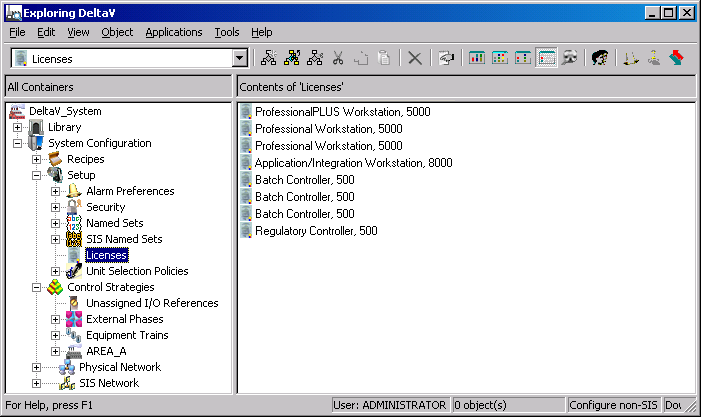
The licenses are loaded into the License folder. Select
System
Configuration → Setup → Licenses to view the licenses.
Now you can assign the licenses to nodes.
Consider creating a backup copy of the license file. Select
File → Licensing → Create
License File to create a backup copy of the licenses.
Note
Your licenses are exported if you completely export your DeltaV
system.