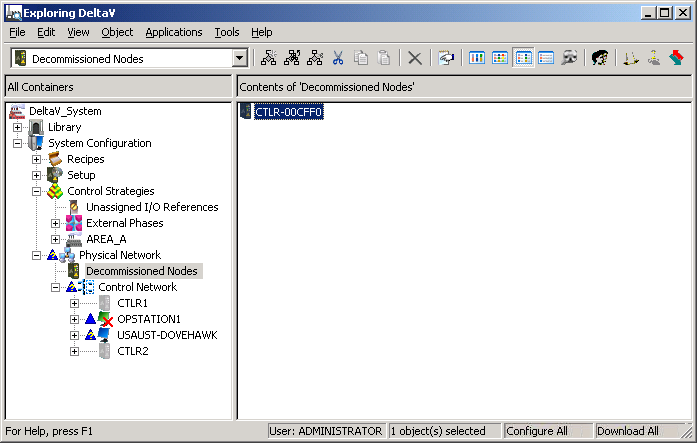
(These are general instructions and are not part of the tank process tutorial. If you have a controller and I/O connected, they are not likely to match the hardware specifications for the example.)
- In DeltaV Explorer, select System Configuration → Physical Network → Decommissioned Nodes.
- Select the decommissioned controller in the right pane.
-
Drag the decommissioned controller to
Control Network or to a specific controller
placeholder. You can also commission a controller by selecting
Commission from the
Control Network context menu or the
controller's context menu.
If you drag the decommissioned controller to Control Network, a Properties dialog opens for you to enter a name for the controller. Then you will be asked if you want to auto-sense the I/O cards. For a new controller, for which you have done no configuration, you would normally click Yes.
If you drag the decommissioned controller to a placeholder, such as CTLR1, you will be asked if you want to auto-sense the I/O cards. If you have already configured I/O cards for the placeholder controller (which you will learn how to do in the next section), click No. If you click Yes, the auto-sensed cards will be compared to the ones configured, and any mismatches will be displayed. You can replace any empty slot with an auto-sensed card. To replace mismatched cards, you must delete the configured cards.
TipYou can identify a decommissioned controller and confirm that it is communicating by selecting and right-clicking the controller, and then selecting Properties. Select the Controller tab, and then select Flash lights to make the controller's lights all flash at the same time. You can then select Stop flashing and click OK to close the dialog.
ImportantYou can decommission a controller by selecting and right-clicking the controller, and then selecting Decommission. The left pane still shows the controller name. This placeholder still contains configuration information, such as I/O Device Tags and assigned modules. Do not delete the controller placeholder. Deleting a controller placeholder will also delete the I/O configuration, including any Device Tags assigned to the controller's I/O.