Note that the currently selected link is now
displayed in the upper right corner of the picture.
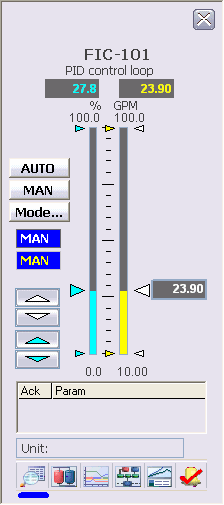
Click the
Faceplate button to open the faceplate for the
module.
At the bottom of the faceplate, notice that the
Detail button has a blinking line under it.
This indicates there is a problem with the module (in this case, there is no
I/O).
Change the mode to Auto by clicking the
AUTO button on the faceplate.
Change the setpoint by moving the slider bar (large white
triangle) to a new value.
Close the faceplate.
Tip
The
Trend button at the bottom of the
faceplate opens the prebuilt, module-specific trend display for any module
created from a DeltaV Library template.
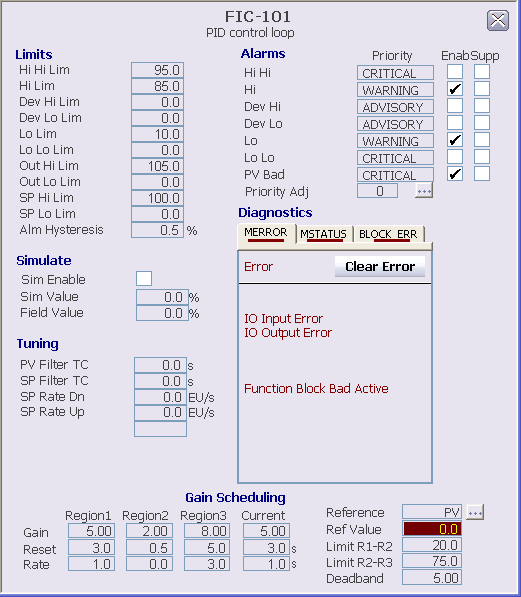
Open the detail display by
clicking the
Detail button on the faceplate or the main
picture.
On the detail display, the operator can change tuning
parameters (such as gain and reset), change high and low limits, and enable or
disable alarms, if these have been configured as changeable.
 Click the

 Open the detail display by
clicking the
Open the detail display by
clicking the