Viewing history data

Open the Process History View application

  1. Click StartDeltaV OperatorProcess History View.
  2. Select FileNew.
  3. Click the E +Chart button in the New dialog.

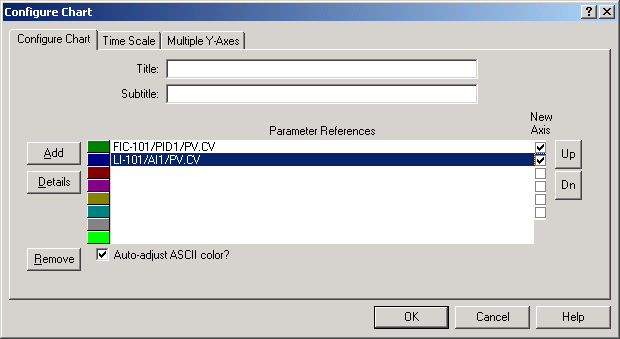
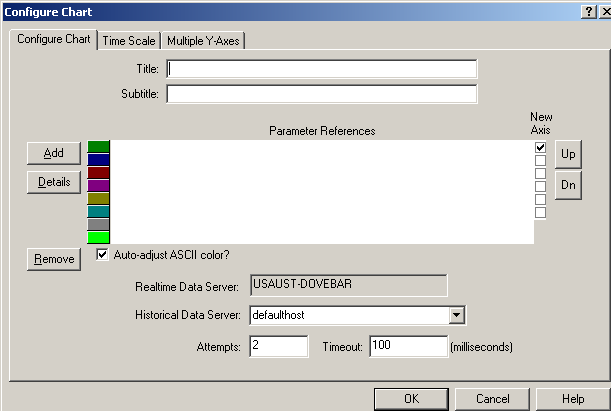
    The Configure Chart dialog opens.

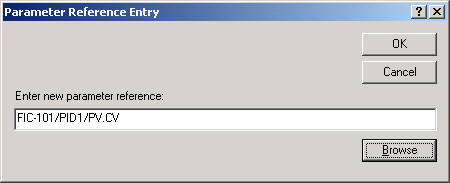
  4. Click the Add button, and then click the Browse button in the Parameter Reference Entry dialog.
  5. Select Module Parameters in the Object Type field, and then browse in the TANK-101 area for FIC-101/PID1/PV.CV to plot the value of the outlet flow.

  6. Click OK in the Parameter Reference Entry dialog.
  7. In the Configure Chart dialog, click Add, and then browse for LI-101/AI1/PV.CV to plot the value of the tank level in the tank process.
  8. Click OK.
  9. Click the New Axis check box for LI-101/AI1/PV.CV.
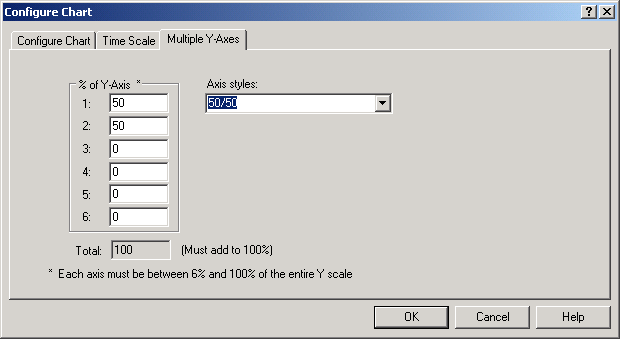
  10. Click the Multiple Y-Axes tab.
  11. Click the down arrow and select 50/50 in the Axis styles box to create two Y scales to plot the data values.
  12. Click the Configure Chart tab, and enter MYGRAPH as the Graph Title.
  13. Click OK to close the Configure Chart dialog.
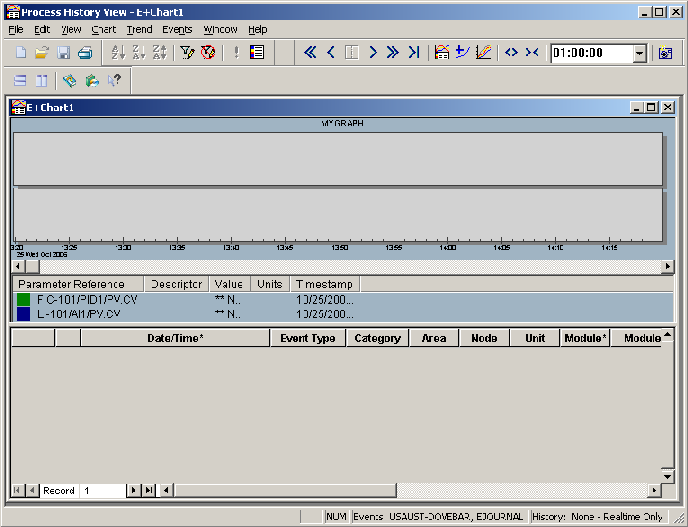
    The graph appears, showing module trends for the two parameter references, as well as the events in area TANK-101.

    The Process History View application has numerous graph configuration options and event filtering options that are described in the Online Help.

    Tip

    Click TrendPlot Method to change the line style.

  14. Quit the Process History View application. Save if you are prompted to do so.