The following figure calls out the various items on the MPC Simulate interface.
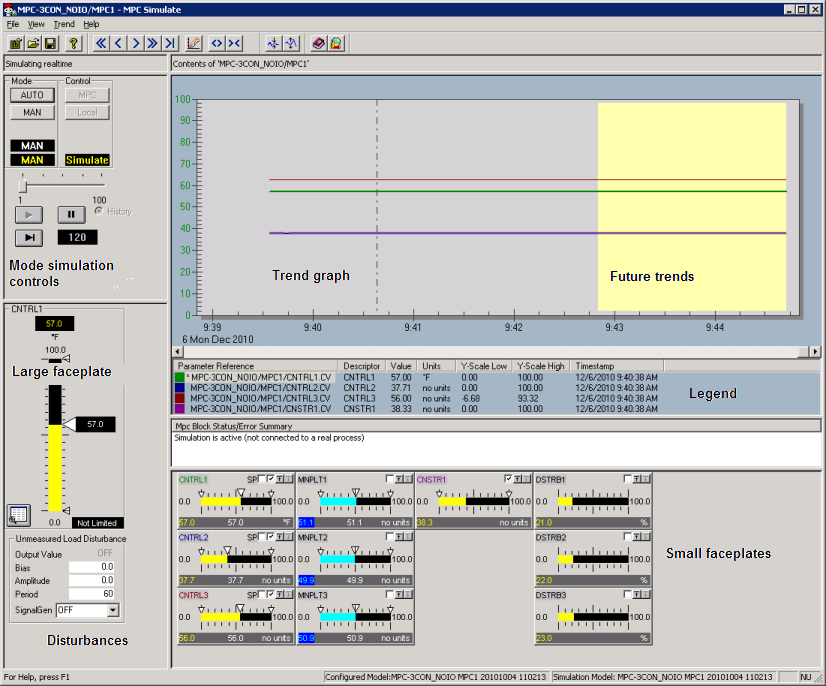
Mode Simulation Controls
Use this area to change the MPC block mode (mode is displayed Target/Actual), set a real-time execution multiplier which scrolls the time scale continuously, and set the number of steps by which the time scale scrolls in step mode.
Use the slider to set the execution multiplier. The process is speeded up by the multiplier. (For example, a multiplier of 10 speeds up the process by a factor of 10.) Use the Pause button to examine the trends when the time scale is scrolling in continuous mode and the Run button to continue scrolling.
Double-click the Number of steps field to set the number of block executions for step mode. (The default number of steps is the time span for the future area.) Use the Step button to advance the time scale based on the number of steps. For example, if the number of steps is 2, the block executes twice and the time scale advances 2 seconds.
Trend Graph
The trend graph plots the real-time and historical process data collected on a parameter reference. Up to six inputs and outputs can be trended at one time. To add or delete a parameter from the graph, check or clear the check box on the parameter's small faceplate. You can scroll the graph time scale forward and back in time, increase and decrease the time span, and expand and compress the amplitude of a trend line.
Future Trends
The yellow area on the graph displays future (projected) trends for Controlled and Constraint variables.
Legend
The Legend provides information about the parameter references and helps you to read the graph. Select a parameter in the Legend, and then right-click to modify the Y axis and scale, change the trend color and plot method, and scroll the trend forward and backward in time.
Large Faceplate
Use the large faceplate view to make changes in operating targets of Controlled or Manipulated parameters, to open a Detail picture to change limit and tuning parameters for each MPC parameter, and to add noise and other unmeasured load disturbances and test their affect on the process.
Small Faceplates
The small faceplates view shows up to 16 small faceplates (maximum of
four faceplates for each Controlled, Constraint, Manipulated, and Disturbance
variable). Use the resize arrows
 to make the small
faceplates larger or smaller. To add or delete a parameter reference from the
graph and Legend, check or clear the check box on the parameter's faceplate.
parameter changes and changes in operating targets of Controlled or Manipulated
parameters are made from the large faceplate. Click a small faceplate to open a
large faceplate of the associated parameter.
to make the small
faceplates larger or smaller. To add or delete a parameter reference from the
graph and Legend, check or clear the check box on the parameter's faceplate.
parameter changes and changes in operating targets of Controlled or Manipulated
parameters are made from the large faceplate. Click a small faceplate to open a
large faceplate of the associated parameter.
Disturbances
Use this area to add noise and other unmeasured load disturbances to test their affect on the process.