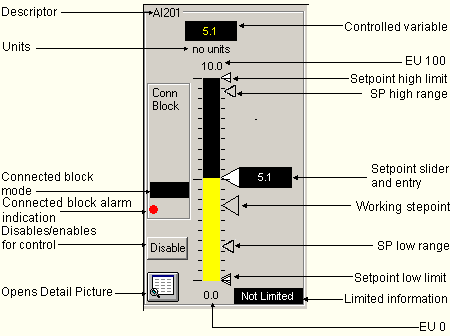
Use the large faceplate view to make changes in operating targets of Controlled or Manipulated parameters, to open a Detail picture to change limit and tuning parameters for each MPCPro parameter, and to add noise and other unmeasured load disturbances and test their affect on the process. Click a small faceplate to open its corresponding large faceplate.
This figure describes the fields on a Controlled variable large faceplate. If an alarm goes active on the referenced block (regardless of the alarm's priority or acknowledgement status), the connected block alarm indicator appears. A red border around the faceplate indicates this required output is disabled or has failed; a yellow border indicates a fail condition exists, but the configured fail action is for no action (not required) or simulate. A green border indicates that a remote setpoint is configured and the block is in RCAS mode.