The Interaction View is the area below the horizontal divider. It includes the Autogeneration dialog and the Operation dialog.
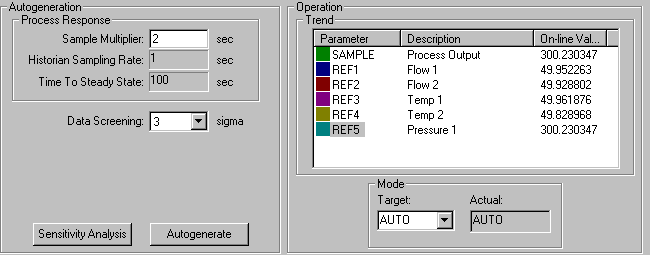
Autogeneration Dialog
The Autogeneration dialog appears different depending on whether you have selected Normal or Expert (user) on the Options menu. If you selected Normal, the Data Screening field and the Sensitivity Analysis button are not available. Entering the Sample Multiplier and clicking the Autogenerate button performs sensitivity analysis, training, and creates the model.
If you selected Expert, you can control the model creation by analyzing results from different steps such as ‘Sensitivity Analysis’ and ‘Training’. You must also enter the Sample Multiplier and may modify the Data Screening range.
Operation Dialog
The Operation dialog contains a list of input variables and the output of the current NN block. The list contains descriptions of the variables and their online values in the controller. To select a variable for trending, double-click the name. Double-clicking acts like a toggle switch selecting it for trending if it is not already trended or deselecting it if it is already selected. You can select a maximum of six parameters to trend at any time.
When the application establishes connection with a block, the first five input variables and the SAMPLE variable are plotted. Right-clicking a variable opens a context menu from which you can change the scales for the variable on the trend, hide or show the left axis, and select/deselect the variables on the trend.