After you start DeltaV Neural the application window appears. The window is divided into upper and lower sections.
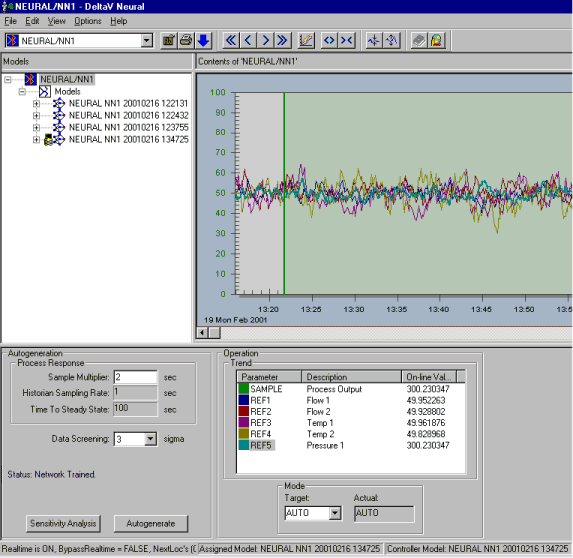
The following figure shows how the application appears when an NN block or a Models node is selected.
Hierarchy
The Hierarchy View in the left upper pane of the interface shows the model structure of the NN block the application is currently connected to.
Trend View
The Trend View is activated when the NN block item is selected in the Hierarchy View. Raw data values retrieved from historical process data collection and real-time data retrieved from the controller via OPC is displayed. As stated earlier the Operation dialog in the Interaction View aids the user in selecting and deselecting the appropriate variables on the trend.
Sample Multiplier
Use the sample multiplier field to configure the Time to Steady State (TSS), the estimated time (in seconds) for the process to completely respond to changes in inputs.
Historian Sampling
The data sampling rate at which data is stored. This read-only value is configured in the NN function block. This value is not of relevance when reading data from a file.
Time To Steady State
Estimated time, in seconds, it takes for the process to respond to the slowest responding input. This field also corresponds to the horizon over which DeltaV Neural estimates input delays.
The Time to Steady State (TSS) is calculated as:
TSS = 50 × Data Sampling Rate × Sample Multiplier.
Data Screening (Sigma)
This value sets the range about the mean of sampled values in terms of standard deviation (sigma) outside of which sampled values are discarded when training the network. For example, if you enter 3 sigma, values outside the range Mean - 3 × sigma to Mean + 3 × sigma are discarded.
The default value is 3.5 sigma which results in data outside the range Mean - 3.5 × sigma to Mean + 3.5 × sigma being discarded, and is the recommended value.
Generation Status
This field displays information on the current network model training and generation.
Sensitivity Analysis Button
Click the Sensitivity Analysis button to select the inputs (up to a maximum of 16 from the configured maximum of 20) that most affect the output and calculate the delays and corresponding sensitivities of the inputs. The network is not trained and the DeltaV database is not updated. This option is available to Expert users only.
Autogeneration Button
Click the Autogenerate button to automatically create a neural network model from the selected data. The model is automatically assigned to the NN function block and the DeltaV database is updated. You must download the DeltaV controller to put the generated neural network model online.
Trend Parameter List
The parameter data list shows the NN block's input references (REFx) and the SAMPLE parameters. You can graph up to six parameters at one time.
Modes