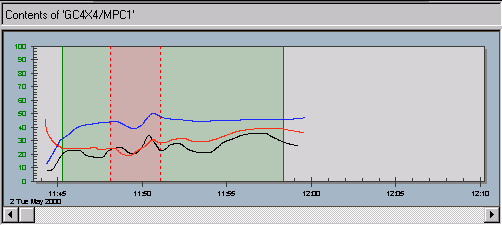
You may want to exclude one or more ranges of data from the range you have selected to use for training. To do so:
Right-click the selected area and select Add Excluded Area from the context menu or select Add Excluded Area from the Trend menu
A new pair of vertical slider bars in different style and color appears
Select one of the sliders and drag it to the desired start or end time point of the data to be excluded during the identification and training process.
Select the other slider and drag it to the other end point of the data to be excluded.
The area defined by the new pair of bars (excluded area) is shown in red/pink color. You can define as many excluded areas as you wish as long as:
An excluded area is not defined outside the selected area of data
A pair of bars which define an excluded area are not dragged outside the selected area