Validates items after they have been mapped. The validation will check the canonical data type, requested data type, value, quality, time and status for each item in the mapping.
- Start Mirror Configuration by selecting .
- Open the pipe for which you want to validate the mapping. Mappings will be displayed in the bottom window.
- Select the mapping to validate by clicking it.
- Click from the top menu bar.
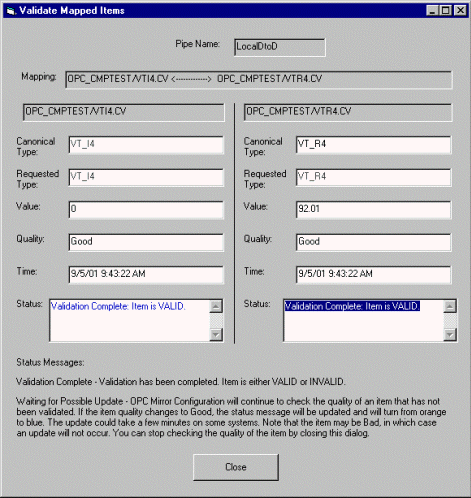
- Canonical Type -- inherent type of the item. That is, how the server stores and manipulates an item (for example, float, signed integer, string, etc.).
- Requested Type -- type specified by the user in the mapping properties. If no type is requested, the canonical type will be listed in this field.
- Value -- the current value of the item
- Quality -- the current quality of the item
- Time -- the server time that the item data was retrieved for validation
- Status -- the validation status. There are five possible status messages:
- Validation Complete -- Validation has been completed. Item is either VALID or INVALID. If the item is VALID, the text will be blue. If it is INVALID, the text will be red.
- Waiting for Possible Update -- The quality of the item is bad, uncertain or unknown. The quality of the item will continue to be checked. If the item quality changes, the status message will be updated. An update can take a few minutes on some systems. Note that an item can be bad, in which case an update will not occur. You can stop checking the quality of the item by closing the Validate Mapped Items dialog.