DeltaV System Registration utility installed on the ProfessionalPLUS workstation can collect non-DeltaV workstation information if the workstations can communicate to each other. The operating system of the non-DeltaV workstation must be supported by the DeltaV version of the ProfessionalPLUS workstation.
Non-DeltaV workstations from which you might collect data include, but
are not limited to:
- Downstream Patch Management server
- DeltaV Backup and Recovery Servers
- OPC servers
- PI Enterprise Servers
The
DeltaV System Registration dialog includes a section
called
Collect Information from Non-DeltaV Workstations
to manage the non-DeltaV workstations from which the utility
collects data. This page enables you to add, delete and edit non-DeltaV
workstations. When you add a workstation, use the
Test Connection button to make sure the utility
can communicate with the workstation. If the utility cannot connect, check the
following:
- The non-DeltaV workstation and the DeltaV workstation running the DeltaV System Registration Utility are connected in a way that enables one workstation to ping the other.
- You have administrative privileges that enable Remote WMI and Remote Registry access.
- Both workstations have file and printer sharing turned on.
- For Remote Registry Errors, ensure in both workstations that:
- The Remote Registry Windows Service must be enabled.
- The TCP ports 139 and 445 are open.
- Use Registry Editor (regedit.exe), File -> Connect Network Registry to diagnose.
- For Windows Management Instrumentation (WMI) Registry Errors, verify
the following:
- The following Windows Services are enabled for both workstations:
- TCP/IP NetBIOS Helper
- Remote Procedure Call (RPC)
- Windows Management Instrumentation
- The TCP port 135, and 49152 – 65535 (random ports used by RPC) are open.
- There is no firewall or software blocking WMI communications.
- The following Windows Services are enabled for both workstations:
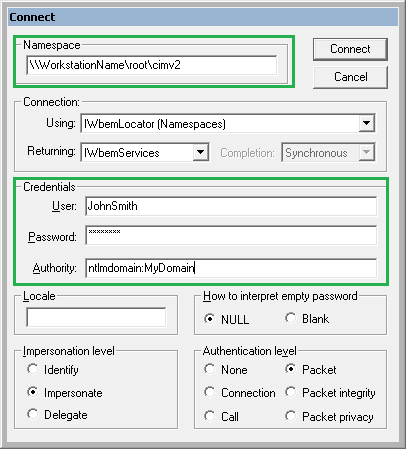
- Use Windows Management Instrumentation Tester (wbemtest.exe) to
diagnose the problem if necessary.
- For Namespace, replace WorkstationName with the actual workstation.
- When workstation is part of a domain, in Authority replace MyDomain with the actual domain name. When the workstation is part of a workgroup, make sure the Authority field is empty.
Here are some common connection errors and their possible solution:
- Error 0x800706BA – RPC Server Unavailable: Open Windows Firewall. Click Allow a program or feature through Windows Firewall. Check Windows Management Instrumentations (WMI), and check the necessary network locations (domain, private, etc.). Press OK. In Windows Firewall, select Advanced Settings. Allow Windows Management Instrumentation for both Inbound and Outbound rules.
- Error 0x80070005 – E_ACCESS_DENIED: Run dcomcnfg.exe. Expand Component Services -> Computers. Right click on My Computer and select Properties. Open COM Security Tab. Click on Edit Limits… on Access Permissions and add the user with all permissions allowed. Do the same for the Edit Limits… on Launch and Activation Permissions.
- Error 0x80041003 – WMI Access Denied: Open Windows Management Instrumentation console (wmimgmt.msc). Right click on WMI Control and select Properties. Open Security Tab. Expand Root, select CIMV2 and click Security. Add the user with all permissions allowed. Even if the WMI and Remote Registry services are up, there could be other software or configuration blocking remote collection of non-DeltaV workstations. The user has an option to install the DeltaV System Registration Utility on the non-DeltaV workstation they want to collect, as described in the next section.