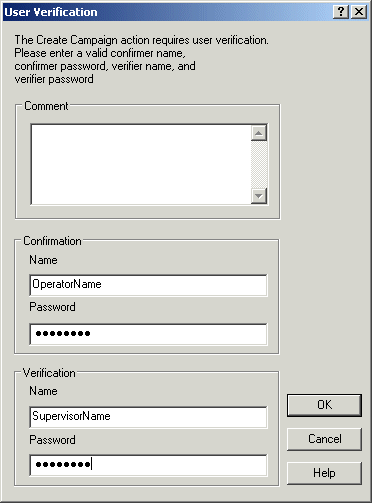
User ID Verification in Campaign Manager Operator Interface
You can set up confirmation and verification preferences for Campaign Manager Operator Interface commands, such as adding a batch, modifying a batch, modifying a campaign, and so on. The confirmation and verification settings are defined in the Campaign Manager Server Configuration dialog.
To access this dialog, open DeltaV Explorer, select and right-click the Campaign Manager node. From the context menu, select Properties. Select the Action Confirmation tab. Configure the actions for each command.
The Prompt column is enabled by default. A prompt dialog is displayed when the user selects a command, such as starting a batch (the dialog will prompt the user, "Are you sure you want to start this Batch?").
Campaign Manager Server Action Confirmation Dialog
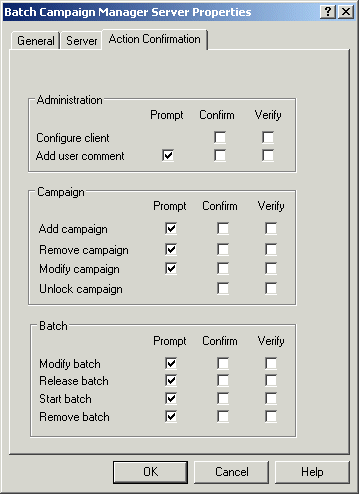
Usually all Campaign Manager operator actions can be performed by users who have been granted a Batch Operate key in the User Manager security scheme. However, to keep a record of which operator confirmed an action, select the Confirmer check box for that action. When the operator attempts to initiate the action, a dialog opens requiring the operator to enter a valid User ID and password. A valid user has the Batch Operate key. In addition, if you select the Verifier check box, the dialog includes the verify fields requiring a user with supervisory privileges to enter a valid user ID and password.
Campaign Manager User Verification Dialog