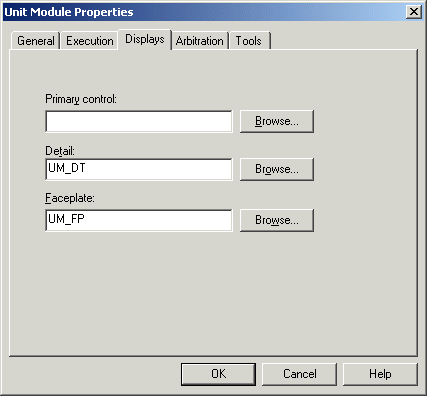
Defining unit module properties - displays
Use the Displays tab to define the operator displays associated with this unit module.
Primary control: Enter the primary display name or click Browse to find the available primary displays. If you enter a file name that does not exist, the system accepts the name, allowing you to create the display later. However, if the display is not there when the operator attempts to open it, the system displays an error.
The primary display appears when an operator clicks an alarm for the module.
If you do not want a primary display for this module, type the word NULL in this field. Otherwise, the operator will get an informational message when an alarm is selected for this module.
Detail: Enter the detail display name or click Browse to find the available Detail displays. If you enter a file name that does not exist, the system accepts the name, allowing you to create the display later. However, if the display is not there when the operator attempts to open it, the system displays an error.
The detail display provides common operating information, control options, and more advanced, tuning-related information about the module.
Faceplate: To specify the faceplate display for this module, enter a display name or click Browse to find the available displays.
Enter the faceplate display name or click Browse to find the available faceplates. If you enter a file name that does not exist, the system accepts the name, allowing you to create the display later. However, if the display is not there when the operator attempts to open it, the system displays an error.
The faceplate for a module appears when the operator clicks an Alarm Direct Access button for the module in DeltaV Operate.
If you change the name of the faceplate display for the module, you must create a chart for Process History View to use when launched from this faceplate. The standard faceplate displays already have charts with the same name for Process History View to use. You can copy the existing chart and rename it or create a completely new chart. Refer to the Process History View help for information on creating and editing charts.
Unit Module Display Properties