Procedure as PFC and procedure as table screens
The Procedure as PFC and Procedure as Table screens are the screens most commonly used for monitoring and controlling batches. From each of these screens, operators can issue the following commands:
The operator can also use the PFCView.grf display. This display is comprised of three ActiveX controls, the Batch Step List object, the Batch PFC object, and the Batch PFC Command Toolbar. Additionally, you can create your own operator display using these controls. Refer to the DeltaV Operate online help for more information.
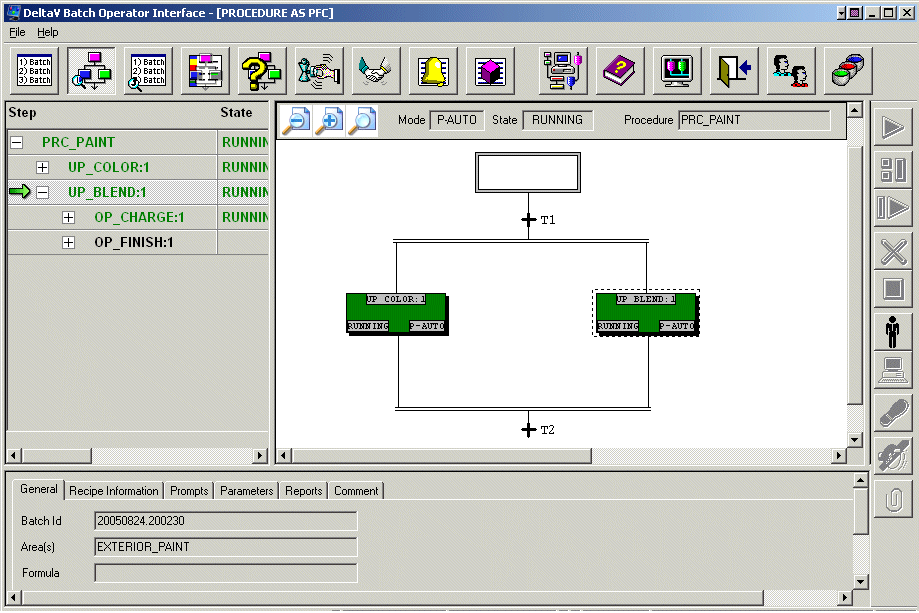
Both the PFC and the Procedure as Table screens contain the same batch information, but they display it in different ways. The Procedure as PFC screen displays the procedural function chart of the recipe and allows operators to visually monitor a batch step-by-step, as shown in the following figure.
Tip You can drill into a step by double-clicking the step. You can back out one level (to the next recipe level up) by double-clicking the first step (top most step in the current PFC view).
PFC View Screen
The Procedure as Table screen displays the batch information in a spreadsheet format and lists the recipe's procedural elements, including:
Procedure as Table Screen
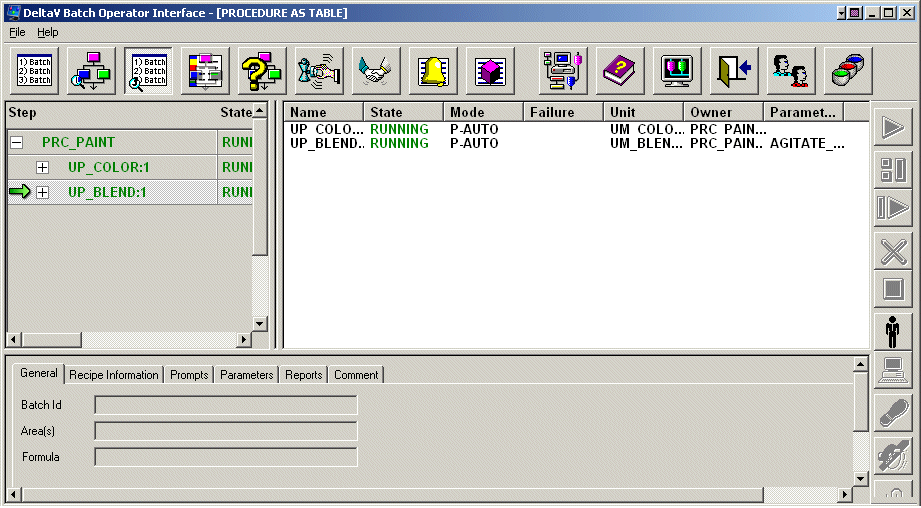
The Procedure as Table is disabled by default to conserve CPU resources. If this screen is needed, please call the Emerson Global Service Center or your local Field Service Office/Local Business Partner.
The Procedure as PFC and Procedure as Table Screens are identical. By moving the slide bars, operators can reveal an PFC section in the Procedure as Table screen and a Procedure as Table section in the PFC screen.
Operators can select a screen based on the type of batch information they want to be visible. For example, perhaps an operator wants to know which segments of a multiple part transition have not been completed. To view that information, the operator can access the Procedure as PFC screen and click a Transition to open the Transition Expressions dialog. If the operator wants to quickly see if there are any failures in a batch, the Procedure as Table screen provides that information in a column in the Table View.
There are two components that are identical in both the PFC and the Procedure as Table screens. They are:
-
Procedural Hierarchy - provides detailed information about the current batch, including the current:
Operators can use the slide bar to enlarge the procedural hierarchy area of the screen to view all the available columns of information.
-
Auxiliary Windows - Auxiliary windows are opened by index tabs. The windows display the following information, shown in the above table for the currently-selected step in the Procedural Hierarchy or in the PFC section of the screen.
|
Use the ... |
To display the recipe's ... |
|---|---|
|
General window |
Batch ID, area, and formula. |
|
Recipe Information window |
Name, product code, version and procedure information. |
|
Prompts window |
Prompts for the step highlighted in the Procedural hierarchy, the PFC, or the Table View. |
|
Parameters window |
Parameters for the element highlighted in the Procedural Hierarchy, the PFC, or the Table View. |
|
Reports window |
Name, value, and engineering unit. |
|
Comment window |
Comments added. Also use this window to add new comments to the recipe. |