Using the DeltaV status window on the Redundant Batch Application Stations
After configuring the Redundant Batch Application Stations, the DeltaV Status window runs in the Windows System Tray. You can use the DeltaV Status window to monitor redundancy status and for general diagnostic information while troubleshooting.
To open the DeltaV Status window, click its
 icon in the System Tray.
DeltaV Status Window
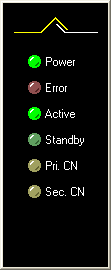
The DeltaV Status window has two options: Always On Top and Auto Hide. To enable or disable either option, right-click the DeltaV Status window and click the option in the shortcut menu that you want to toggle on or off.
The DeltaV Status window contains the following indicators:
-
Power: If not illuminated, there may be a communication or setup problem.
-
Error: If illuminated or flashing, an error is preventing the workstation from assuming active or standby status.
-
Active: If illuminated, the active is fully configured and operational.
-
Standby: If illuminated, the standby is fully configured. The light is solid if the server is configured or flashing if unconfigured or being downloaded.
-
Pri. CN: Flashes to indicate that the Primary DeltaV control network is communicating.
-
Sec. CN: Flashes to indicate that the Secondary DeltaV control network is communicating.
For example, the following table illustrates how the lights are illuminated when a switchover has occurred and the unattended reboot option is not selected.
|
Lights |
Node A (current Active role) |
Node B (current Standby node) |
|
|---|---|---|---|
|
Before Switchover |
Power |
On |
On |
|
Error |
off |
off |
|
|
Active |
On |
off |
|
|
Standby |
off |
On |
|
|
Pri. CN |
Flashing (if has traffic) |
Flashing (if has traffic) |
|
|
Sec. CN |
Flashing (if enabled & has traffic) |
Flashing (if enabled & has traffic) |
|
|
After Switchover |
Power |
off |
On |
|
Error |
Flashing |
off |
|
|
Active |
off |
On |
|
|
Standby |
off |
off |
|
|
Pri. CN |
off |
Flashing (if has traffic) |
|
|
Sec. CN |
off |
Flashing (if enabled & has traffic) |
|