Formulas and deferred parameters > Deferring parameters > Creating deferred parameters

Defer a phase parameter and create an operation level parameter

  1. Open the procedure PRC_PAINT in Recipe Studio.
  2. In the Hierarchy view in the upper left corner, expand PRC_PAINT and UP_BLEND and select the operation OP_CHARGE.
  3. In the Diagram view, click the step named CHG_BASE:1 to select the phase.
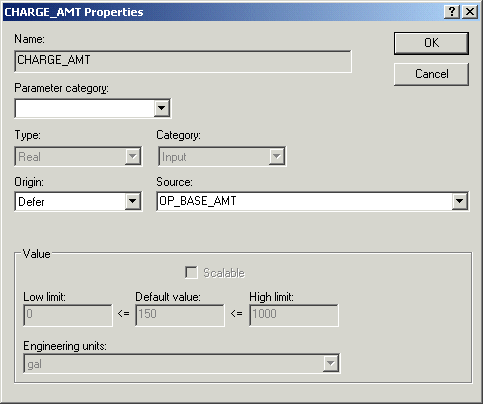
  4. In the lower left corner of the Parameter view, right-click the phase parameter CHG_BASE:1/CHARGE_AMT, and then select Properties from the context menu.
    The parameter Properties dialog opens.
  5. Change the Origin to Defer and type OP_BASE_AMT as the operation-level parameter to be used as the source for the phase parameter value. 
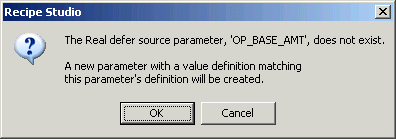
  6. Click OK when the system displays the following message about creating the parameter.

    Since you haven't created the parameter directly, the system will do it for you.

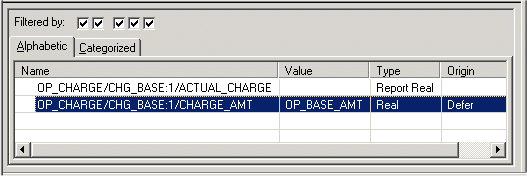
  7. Note that in the Parameter view, with the CHG_BASE phase selected, the Origin field for the CHARGE_AMT parameter is now set to Defer and the Value field specifies OP_BASE_AMT.
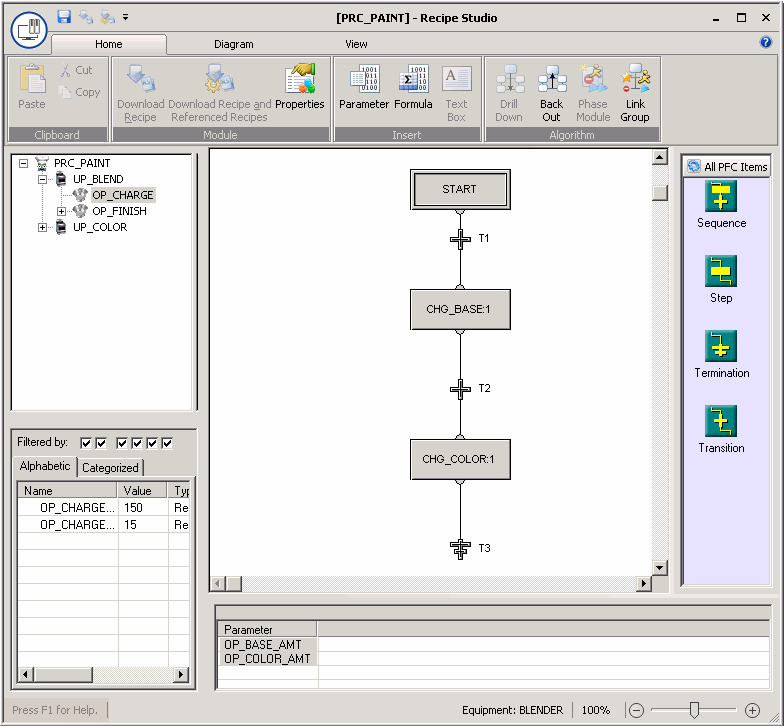
  8. To create a parameter for the charge amount for color, follow steps 3 through 7 above, except click the CHG_COLOR step and name the new parameter source for CHARGE_AMT to OP_COLOR_AMT.
  9. To create a parameter for the agitate time, follow steps 2 through 7 above, except select the OP_FINISH operation in the Herarchy view, click the AGITATE step, modify the AGITATE_TIME parameter, and name the new parameter source AGITATE_TIME.

Now that we have the three process input parameters at the operation level, we need to create them at the unit procedure level and then the procedure level. We will do this the same way, by deferring the lower level parameters to the next higher level, which automatically creates the parameters at the higher level.