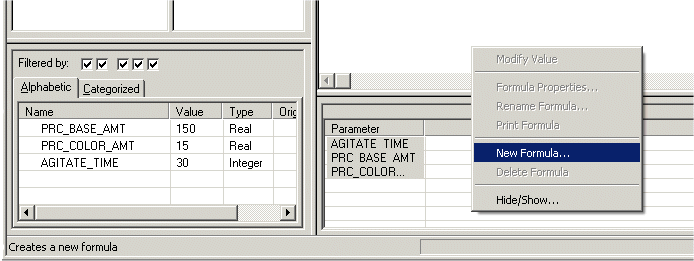
- With nothing selected in the Diagram view, right-click in the lower right corner of the Formula view , and then select New Formula to open the Properties from the context menu.
-
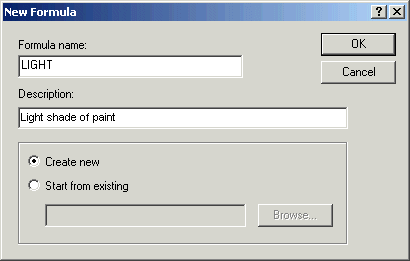
In the
New Formula box, enter the name for the
formula: LIGHT.
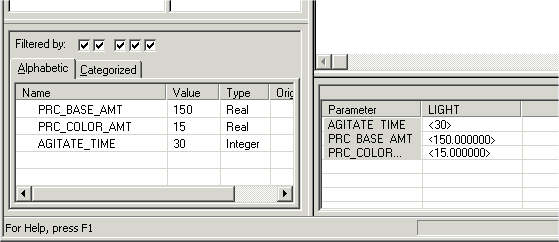
The formula named LIGHT is created in the Formula view, with values set as the default values originally set in the definition of the phase input parameters for the three parameters. The default values are shown in angle brackets, (< >).
NoteYou may need to press the F5 key to refresh the screen to see the parameters.
-
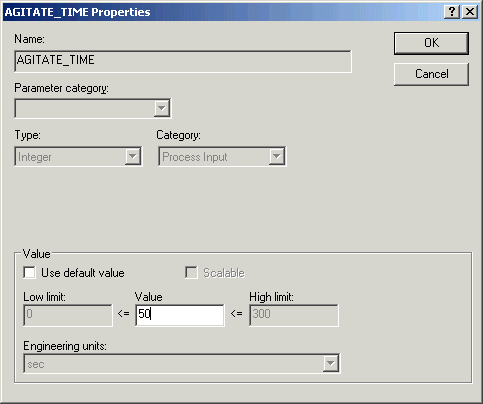
Right-click the value for AGITATE_TIME, and select
Modify Value from the context menu (or
double-click to open the
Properties dialog, clear the
Use default value check box and change the
value to 50. Click
OK.
Note that you can easily reset the value to the default by selecting the Use default value check box.