-
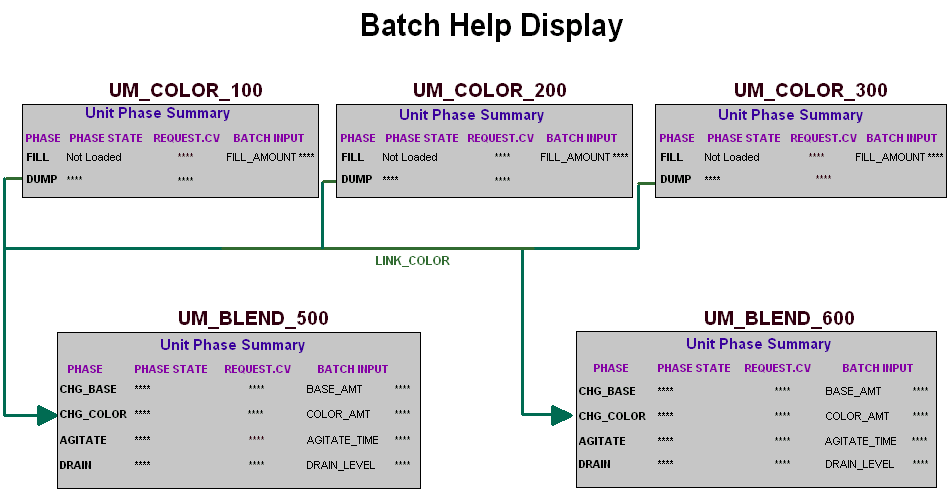
Open the Batch graphic by clicking the
Open folder button
 and selecting
Batch from the list of graphics available.
(Click
Skip All for any messages warning about
parameters not being configured, since we haven't configured many of the unit
modules referenced in this graphic.)
and selecting
Batch from the list of graphics available.
(Click
Skip All for any messages warning about
parameters not being configured, since we haven't configured many of the unit
modules referenced in this graphic.)
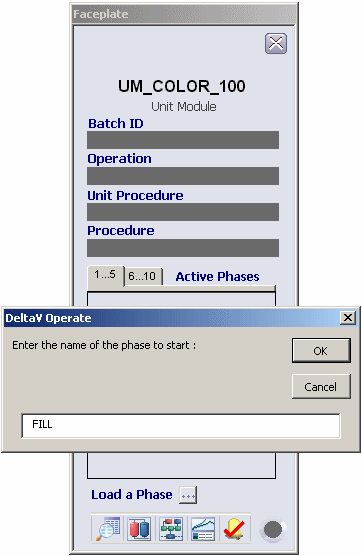
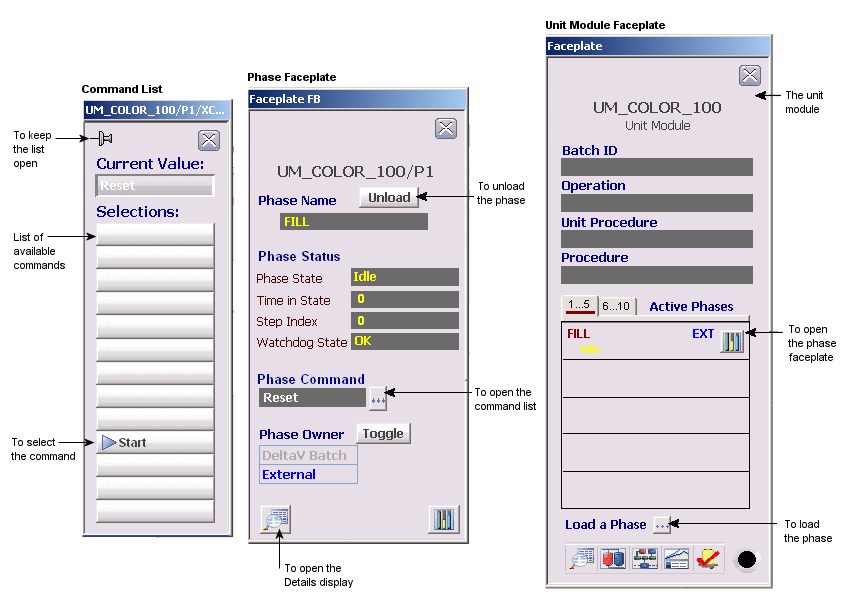
- Click the button next to Load a Phase at the bottom of the faceplate. Enter the phase name FILL (all uppercase) in the dialog.
- Click the button next to Phase Command to open the list of phase commands that are valid for the current state. Click the Pushpin button at the top left of the command list to keep the list open.