Formulas and deferred parameters > Deferring parameters

Test recipe formulas

Now that you have created three recipe formulas, you can go to Batch Operator Interface to see how they can be used in a batch.

  1. Open the Batch Operator Interface. (Remember to start the Batch Executive first if it isn't already running in the background.)
  2. Click the Add Batch button, and then select PRC_PAINT from the list of recipes that have been assigned to a Batch Executive.
  3. In the Unit Binding section, select UM_BLEND_500 for UP_BLEND and UM_COLOR_100 for UP_COLOR.
  4. In the Batch Creation dialog, click Load Formula, and then select the LIGHT formula.

    The formula values for the LIGHT formula are listed.
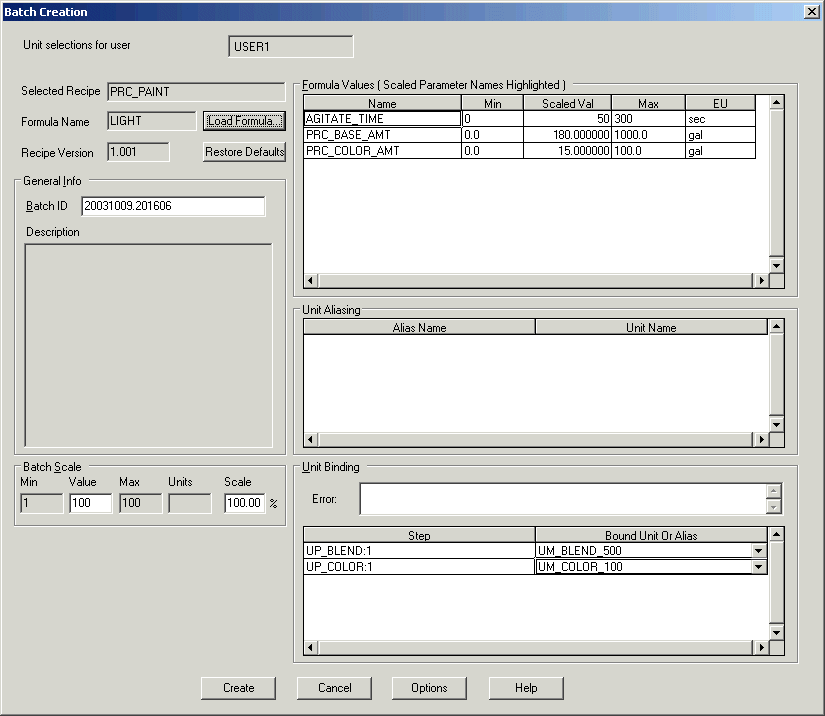
  5. You can accept the values you originally entered for this formula, or you can modify any value by double-clicking and editing it.
    If you modify values, notice that the formula name changes from LIGHT to CUSTOM FORMULA.
  6. Click Create to add the batch to the batch list.
  7. Select the batch on the batch list and click the Start Batch button.
  8. When the batch has completed, close the Batch Operator Interface.