To create two new modules you must edit both exported files. Editing the containing module is slightly different than editing the contained module so both are detailed below.
To bulk edit a contained module:
-
Use the DeltaV Bulk Edit menu to open SLAVE_CAS.TXT.
-
Click OK on the Unicode Detected popup.
The file opens. Note that only the fields you specified in the format file appear as columns in the spreadsheet.
-
Copy line 2 of the spreadsheet and paste it back into the spreadsheet into line 3.
-
In the area column, remove /MASTER_CAS from both lines, leaving only AREA_A.
-
In the module_name field, rename the two modules to SLAVE_CAS2 and SLAVE_CAS3.
-
Edit any other parameters you exported as you require.
-
Save the file using the DeltaV Bulk Edit menu.
-
If SLAVE_CAS_ASCII.TXT is not already selected, select it.
-
Click Save.
-
Click Yes to replace the existing copy of the file.
-
Close the spreadsheet but leave Excel and the Bulk Edit Add-in open.
To bulk edit a containing module:
-
Use the DeltaV Bulk Edit menu to open MASTER_CAS.TXT.
-
Click OK on the Unicode Detected popup.
The file opens. Note that only the fields you specified in the format file appear as columns in the spreadsheet.
-
Copy line 2 of the spreadsheet and paste it back into the spreadsheet into line 3 of the spreadsheet.
-
In the module_name column, rename the two modules to MASTER_CAS_2 and MASTER_CAS_3.
-
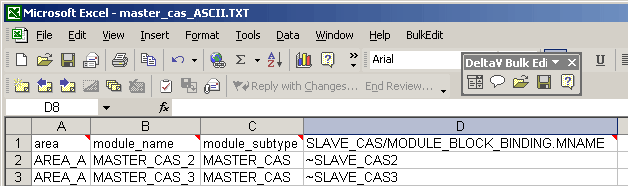
In the SLAVE_CAS/MODULE_BLOCK_BINDING.MNAME column, change the two rows to ~SLAVE_CAS2 and SLAVE_CAS3.
The spreadsheet should look like the following figure.
This step binds each the MASTER_CAS modules to specific instances of SLAVE_CAS created when you import the edited files. The tildes (~) at the beginning of each module name cause the bulk edit software to discard extra modules created during import. If you do not use the tildes an extra copy of all the contained modules remain in the hierarchy after import.
-
Edit other parameters if necessary.
-
Save the file using the DeltaV Bulk Edit menu.
-
If MASTER_CAS_ASCII.TXT is not already selected, select it.
-
Click Save.
-
Click Yes to replace the existing copy of the file.
-
Close the spreadsheet and close Excel unless you have more files to bulk edit.
You can also use Bulk Edit to move existing containing and contained modules, with some limitations.