To create the new modules you must import the edited files.
You must import the files for the contained modules before you import the file for the containing module.
The steps for importing are the same for all modules:
-
From DeltaV Explorer, select .
-
In the Format source dialog, browse to and open SLAVE_CAS.FMT.
-
Click Next.
-
In the Import data sourcef dialog, browse to and open SLAVE_CAS_ASCII.TXT.
-
Click Next.
-
On the Import results dialog, click Import.
After a moment the Import complete dialog appears. It has a log of the import actions. If errors are reported scroll through the log or open DeltaV\DVData\ImportExportProgress.log to determine the cause.
-
If the import was successful, click Close.
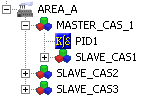
The AREA_A hierarchy now looks like the following figure.
Note that the SLAVE_CAS modules were imported to the AREA_A level.
-
Repeat steps 1 through 6, opening MASTER_CAS.FMT and MASTER_CAS_ASCII.TXT.
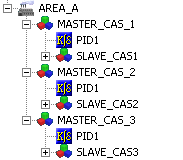
The import does not disturb MASTER_CAS_1 and creates MASTER_CAS_2 and MASTER_CAS_3 and replaces the contained modules created by importing the MASTER_CAS modules with copies of the contained modules you created. The hierarchy under AREA_A now looks similar to the following figure.
Note that the MASTER_CAS_n modules are populated with SLAVE_CASn modules.
Importing MASTER_CAS_ASCII.TXT moved the SLAVE_CAS modules created by importing SLAVE_CAS_ASCII.TXT under the MASTER_CAS modules. The tildes you prepended the MODULE_BLOCK_BINDING.MNAME values in the MASTER_CAS_ASCII.TXT file caused the import to remove the extra modules created when MASTER_CAS_ASCII.TXT was imported.