The following steps create the example module and module template. You can generalize these steps to create your own modules.
-
Start Control Studio.
-
Open the ANALOG monitoring template in the library.
-
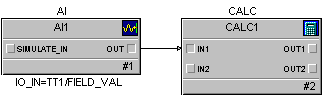
Add a Calculation function block to the module and connect the output of the AI block to the input of the Calc block. The module should look similar to the following:
-
Select the Calc block, and then select Expressions from the context menu.
-
Enter the following in the Expression Editor:
REM Two outputs: degrees F and C
'OUT1.CV' := 'IN1.CV';
'OUT2.CV' := ( 'IN1.CV' - 32 ) * 5 / 9;
NoteIt is a good idea to always start an expression with a remark (REM). If the first line of the expression starts with a quote mark, the User-Defined export and import may not interpret the expression correctly.
-
In the module's properties change the SubType to TEMPS_F_C.
-
Save as module TEMP-101 in AREA_A.
-
Save module TEMP-101 as a module template named TEMPS_F_C under monitoring in the template library.
You now have a template-based module to export.