A composite block is a function block that contains a sheet of control logic. Composites are useful in several ways. They allow you to perform the following tasks:
-
Segment the control logic into logical groupings. This allows improved organization and readability of the control strategy.
-
Arrange control strategies hierarchically. Composites can be placed inside other composites.
-
Intermix various control languages (function block diagrams and sequential function charts) within a single control module.
-
Place a section of control logic in the library for reuse.
Once the logic is in the library you can use it in either of two ways:-
You can reference this logic from modules. Modifying the library automatically updates all modules that reference the composite template in the library. This type of composite is known as a linked composite.
-
Use the custom block assistant to put a copy of that logic in a module. This type of usage is known as an embedded composite. Subsequent changes you make to the composite template do not affect any blocks previously created from the template.
-
Connect multiple function blocks or a sequential function chart to form a composite. Composites you create in the library can be reused repeatedly on diagrams or charts when you want to perform the same function more than once.
The following figure is a representation of a composite function block definition that is used for signal conditioning.
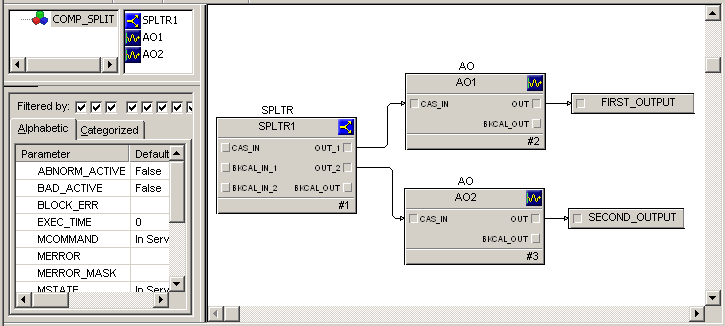
Composites and composite templates are created in Control Studio. You can view the structure of the composite definition and drill down the levels of the composite in the Hierarchy View of Control Studio. You can also step into a composite block when you are editing a downloaded module online.
If you create a composite template, it is in your library and you can add it to your custom palettes. Refer to the Control Studio online help for more information. If you create a single embedded composite using the Custom Block assistant, you cannot copy or reuse that composite.
-
The icon for an embedded composite looks like this:
 . You can add
an embedded composite by using the Custom Block assistant on the Special Items
palette.
. You can add
an embedded composite by using the Custom Block assistant on the Special Items
palette.
-
The icon for a linked composite looks like this:
 . The arrow
indicates a link to another composite. You can add a linked composite by using
the Custom Block assistant on the Special Items palette.
. The arrow
indicates a link to another composite. You can add a linked composite by using
the Custom Block assistant on the Special Items palette.
You can convert embedded composites to linked and linked composites to embedded by right-clicking the composite block and selecting Convert.