In a function block diagram, you can create a linked composite by dragging the Custom Block  from the Special Items palette and clicking the Linked Composite icon, as shown in the following figure:
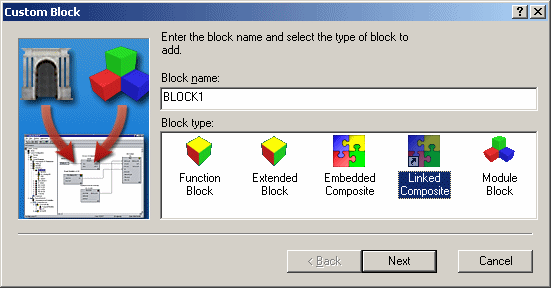
After you enter the name, click Next and select whether you want to link to an existing object or a new object. The dialog looks similar to the following.
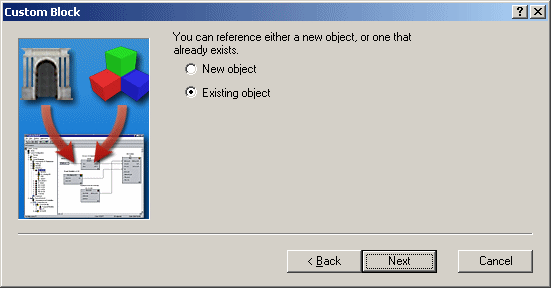
After you select the type of object you want to link to, click Next. Then, you can browse for any existing objects or define new objects. Once you have identified what the composite is linked to, click Finish.
In an SFC, you can insert a linked composite by right-clicking in the right side of the Hierarchy View, and then clicking Add. The steps are then like the previous procedure for adding a linked composite to an FBD: Click Linked Composite and identify what the composite is linked to.
The inputs and outputs are not wired in an SFC diagram. The linked composite appears in the Hierarchy View, but not on the SFC diagram. You run the algorithm in the composite using a non-boolean action in a step, and you can reference the parameters in the composite.