-
Select the
option to load the xml file.
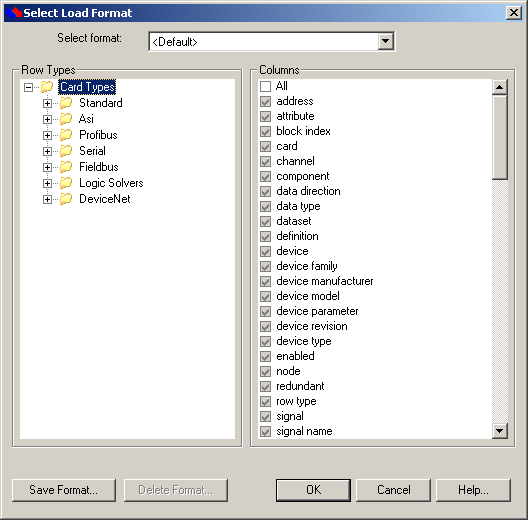
After selecting the file, the Select Load Format dialog appears.
By default all the columns necessary for the SmartPlant Instrumentation interface are selected.
NoteDo not change the default selections in the Select Load Format dialog. Modifying the selections may cause errors when you attempt to save configurations created in SmartPlant Instrumentation to the DeltaV Database.
If errors appear during retrieve do not save the data to the DeltaV database. Make a note of the errors and close the worksheet without saving it. Return to SmartPlant Instrumentation, correct the errors, and re-publish the data.
SPI now has the capability to add user-defined rules in its Rule Manager. Contact your database administrator to get appropriate rules added for working with DeltaV.
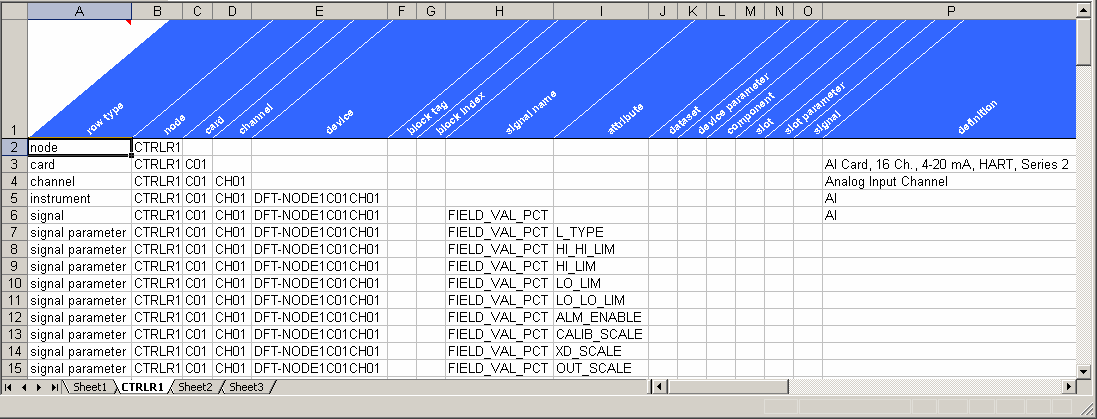
- Click OK to load the data into the worksheet.
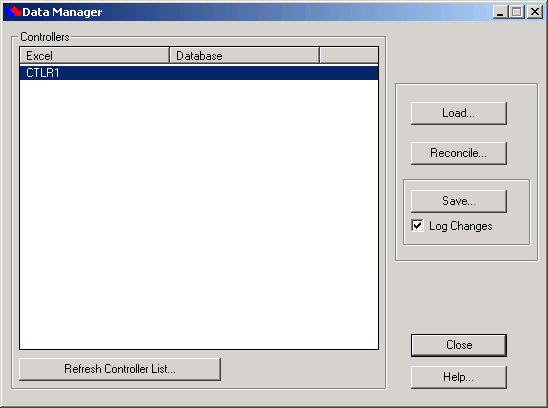
- After you have completed your edits, open the Data Manager dialog () to save the data in the workbook to the DeltaV database.