Themes overview
Themes allow the same graphics configuration to appear differently on different workstations or at different times on the same workstation. Themes can be created for entire displays, including all graphic elements contributing to the display. By applying various themes to the same display, that display can be used for varying situations. When themes have been configured, activated, and published, DeltaV Live users with the appropriate security can select the theme that best meets their needs. For example, you can create a theme that minimizes eye fatigue in low-lighting control room environments, a theme that provides high contrast in brightly lit control room environments; or, an RGS (Reds and Greens Shifted) theme that aids operators who have difficulty distinguishing between certain colors.
Figure 1
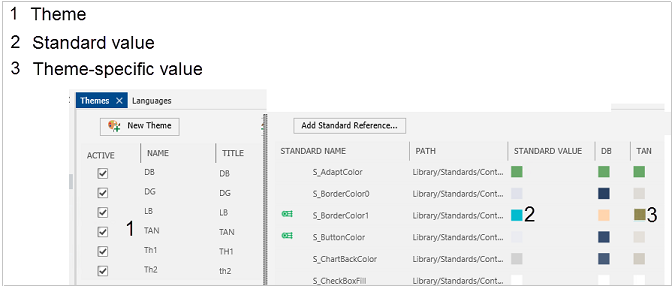
When an active theme is applied in Graphics Studio or DeltaV Live, its theme-specific values replace the standards, system-wide, in all displays.
Creating themes
A Themes folder in the Library Explorer pane provides the means for you to access and create themes. When you create a theme, it immediately appears on the Themes tab in the Workstation Management dialog, with no publishing required. However, themes must be selected as Active to be used in the system.
After adding a new theme, you can add theme-specific values to a standard using either the standard's Graphics Configuration pane or the Theme Guide. Theme-specific values can be configured only for themes that are currently active, but theme-specific values for non-active themes remain in the database as long as their associated standard exist. When you copy or delete a standard, all theme-specific values are copied or deleted with it.
Activating themes
Themes must be selected as Active to be used in the system. When added manually in Graphics Studio, themes are active by default; when imported, they are non-active by default.
| Operation you can perform with an active theme | Where |
|---|---|
| Select it as the current theme in Graphics Studio | Graphics Studio > Application Preferences menu |
| Configure its theme-specific values | Graphics Studio > Theme Guide |
| Assign it to a workstation/session to be available for theme selection in DeltaV Live | DeltaV Live Administration > Workstation Management dialog > Themes tab |
When at least two themes are both active and assigned to a workstation/session, a Themes selection option appears on that workstation's DeltaV Live toolbar, under Tools. Users can select the theme that most appropriately meets their needs. If a workstation/session has no active themes assigned to it, that workstation does not have a theme-selection button available in DeltaV Live.
When you deactivate a theme, it is removed from the theme-selection list in DeltaV Live once it is published. The related configuration for that theme remains, and thus is easily reversed.
Publishing themes
When you create, delete, or change the Active status of a theme, you must publish the theme and the workstation/session to which it is assigned before it is added to or removed from the theme-selection list in DeltaV Live. Publishing a theme, however, does not publish the theme-specific values associated with it. When you add, modify, or remove a theme-specific value in the Theme Guide, its corresponding standard must be published.
Themes are published as a group. When you select a theme or themes to publish, all themes are published. For example, if three themes appear in the Publish dialog and you select the Publish check box for only one of them, all three themes are still published.
Managing themes and theme–specific values
Theme-specific values are managed through their corresponding standards; therefore, when you import, export, or copy a theme, only its name, title, description, and Active/Inactive status are imported, exported, or copied. When you import, export, copy, or delete a standard, all of its theme-specific values are imported, exported, copied, or deleted with it. Theme-specific values cannot be individually imported or exported.
Deleting themes
When you delete a theme in Graphics Studio, that theme is removed from all graphics configuration using that theme. All theme-specific values belonging to the deleted theme are removed from their corresponding standards. (The standards are not deleted.) The theme is automatically removed from the theme selection list in both the Workstation Management dialog and DeltaV Live, regardless of its activation state. If the deleted theme was the current theme in DeltaV Live, DeltaV Live automatically changes to the initial theme used when that DeltaV Live instance opened.