ALM_FLD_SUP_dt (Alarm Flood Suppression module detail display)
The ALM_FLD_SUP_dt is used with the ALM_FLOOD_SUP and ALM_FLOOD_SUP_32 module templates. The following sections describe the major components that are present on the ALM_FLD_SUP_dt.
Alarm Flood Suppression module detail display - Alarms tab
Configuration view of the Alarm Flood Suppression module detail display - Alarms tab (ALM_FLD_SUP_dt)
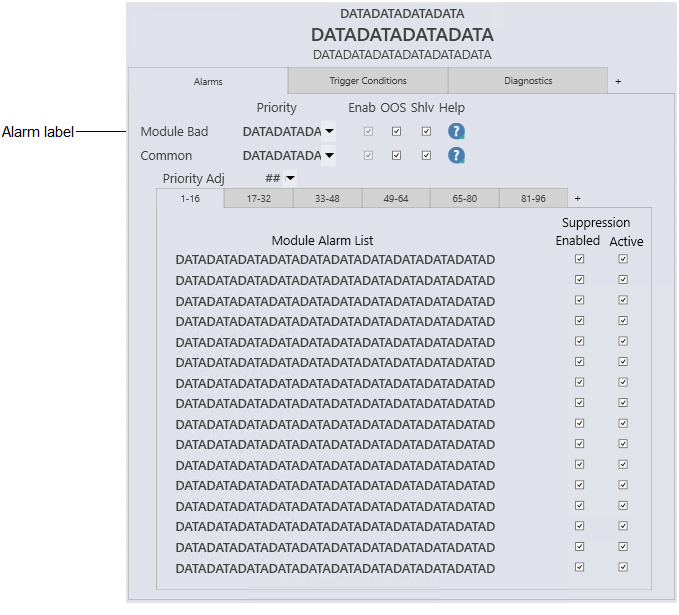
- Alarm label
- The alarm label configured for the alarm.
- Priority
- The alarm priority, such as Warning, Critical or Advisory, that is assigned to the corresponding alarm. Use the drop-down arrow to change the priority for that alarm while online.
- Priority Adj
- Use the drop-down arrow to decrease the alarm priority while online. If a module has more than one alarm configured, the alarm priorities are all reduced by the same value, except that the lowest priority that will be set is 3, a logged event. (For example, if a module has three alarms, configured with alarm priorities of 12, 8, and 5, and a priority adjustment of 5 is made, the online alarm priorities will be set to 7, 3, and 3, respectively.) The configurable alarm priority held in the PRI field of each alarm parameter remains unchanged. Therefore, setting the priority adjustment back to 0 reestablishes the original priority levels. (In the above example, the priorities are reestablished to 12, 8, and 5). Refer to the topic "The ALARMS parameter" for more information on the ALARMS parameter and to the and the "System alarm management" section for more information on alarm priorities.
- Enab check box (Enable)
- Indicates the corresponding alarm's ENAB (enabled) state. This checkbox is a read-only indication.
- OOS check box (Out of Service)
- Indicates whether the alarm is currently out of service.
- Shlv check box(Shelve)
- Indicates whether the alarm is currently shelved. Select this check box to shelve the corresponding alarm; deselect this check box to unshelve it.
- Help icon
- Indicates the type of Alarm Help available for the corresponding
alarm. One of the following icons is visible on the faceplate:
Icon Description 
Alarm Help is enabled. 
Alarm Help is not enabled but the user has the privilege to edit Alarm Help. No icon Alarm Help is not enabled and the user does not have the privilege to edit Alarm Help, or the system does not have a license for alarm help.
- Module Alarm List
- The alarm paths for the module's participating alarms.
- Suppression Enabled check box
- Indicates whether the alarm is enabled for suppression. If checked, the alarm is enabled for suppression; if unchecked, the alarm is not enabled for suppression.
- Suppression Active check box
- Indicates the current suppression state. If checked, the alarm is currently suppressed; if unchecked, the alarm is not currently suppressed.
Alarm Flood Suppression module detail display - Trigger Conditions tab
Configuration view of the Alarm Flood Suppression module detail display - Trigger Conditions tab (ALM__FLD_SUP_dt)
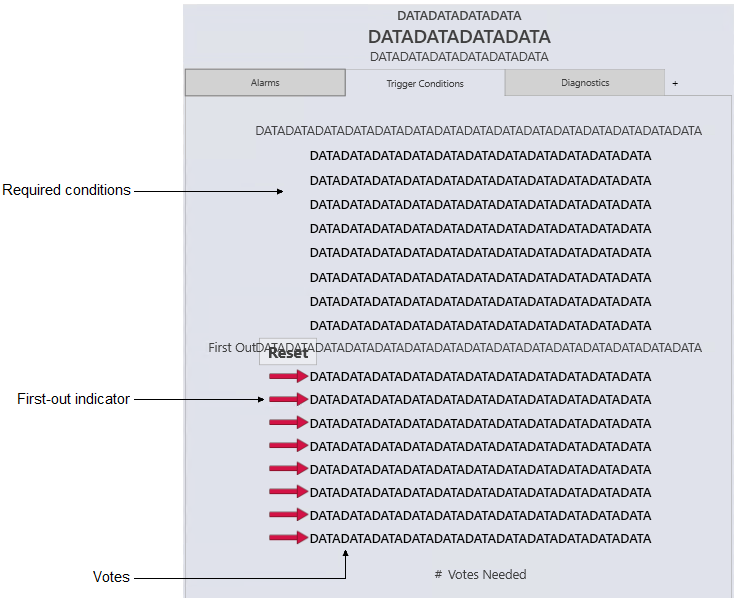
- Required Conditions
- The process conditions that must be present for suppression to activate.
- First Out Reset button
- Clears any visible red arrows. Note that the red arrows do not clear when the conditions clear; the arrows must be cleared using the reset button.
- First Out indicator
- The voting condition or conditions that satisfied the required vote count.
- Votes
- The configured voting conditions that must be present for suppression to activate.
- Votes Needed
- The number of votes needed to activate suppression.
Alarm Flood Suppression Module detail display - Diagnostics tab
Configuration view of the Alarm Flood Suppression module detail display - Diagnostics tab (ALM_FLD_SUP_dt)
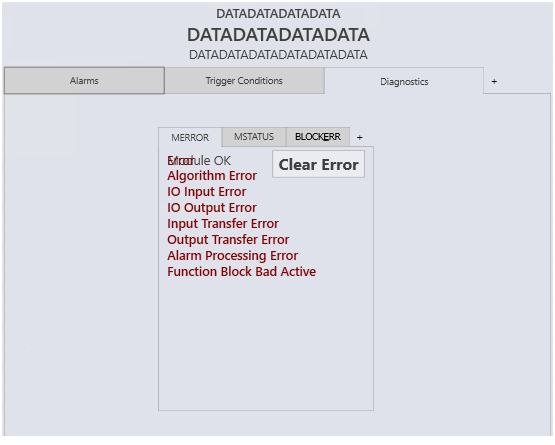
- Diagnostics table
- Shows any active conditions in the module's MERROR, MSTATUS, and BLOCK_ERR parameters. Each parameter has its own tab, and the parameter name is underlined on the tab when an active condition exists for that parameter. Click the parameter's tab to see its active conditions. When an error has occurred in the module, a Clear Error button appears on the MERROR tab. Click this button to clear all active errors.