Display sets overview
Display sets define the collection of displays to be available on each DeltaV Live Operator Workstation or remote client session, as well as provide the means to define a display hierarchy consistent with industry standards such as ISA101.01. Display sets also provide a built-in navigation strategy that helps operators efficiently navigate between displays. These navigation tools, which are accessible through a layout's navigation bar, provide automatic routing and coordination for displays, according to their position in the hierarchy. The displays within a display set are intended to match the specific responsibilities of the control room they are used in and the operator roles for which they are created.
Building a display hierarchy
Display hierarchies are built by dragging and dropping displays into a display set's navigation hierarchy.
When building your display hierarchy, the following rules apply:
- A display set may include both hierarchical and non-hierarchical displays.
- A display set may contain zero or more hierarchical displays.
- A display set may contain zero or more non-hierarchical displays
- A display set may be at most four levels deep
- A display set may have multiple displays at the same level within a hierarchy.
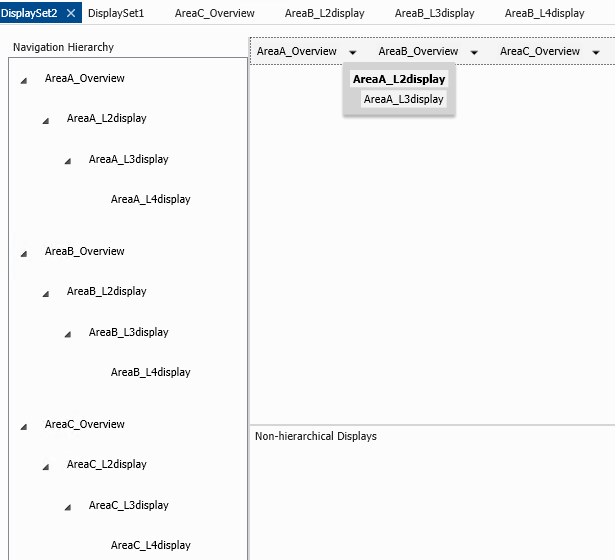
- A display set may have multiple hierarchies, each with its own overview display.
- A display may be included only once in a single display set.
- A display may belong to multiple display sets.
- A display that belongs to multiple display sets can be placed at a different level in each display set's hierarchy.
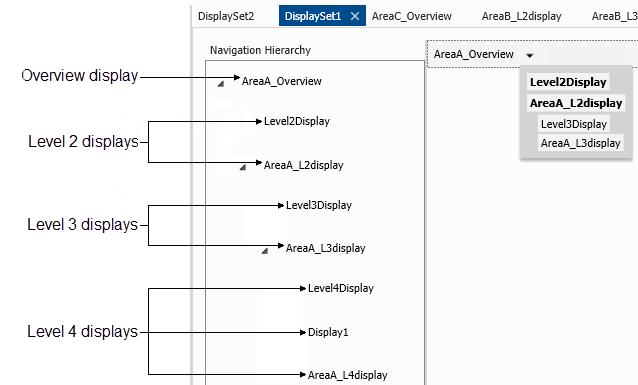
A display set can contain zero or more hierarchical displays. A display may belong to multiple display sets but may be included only once in a single display set. A display that belongs to multiple display sets can be placed at a different level in each display set's hierarchy. Additionally, while a hierarchy can be at most only four levels deep, you can have multiple displays at one level within a hierarchy, or you can have multiple hierarchies within a display set. Multiple hierarchies can be helpful, for example, if you want to build a single plant-wide display set that contains a different hierarchy for each process area. Each hierarchy would then contain an overview display and sub-hierarchy, but all would be contained within one display set.
Display set example 1
Display set example 2
You can also add placeholders to a display set for displays that have not yet been created. Rename the display placeholder to match the name of the future display and then publish the display set. Once you create the actual display and publish it, the display set automatically picks up the change in DeltaV Live and starts using the new display. The display set containing the placeholder does not need to be republished.
Display sets may also contain 0 or more non-hierarchical displays. These displays do not appear in the navigation bar. If a navigation bar is configured in the layout to show display call-up buttons, non-hierarchical displays appear as a drop-down list from which to select the displays available on that workstation. You can also use the Search to find and open non-hierarchical displays. Non-hierarchical displays open either in display frames designated for other displays or as popup windows (if no display frame is configured for other displays).
Using display sets in DeltaV Live
A display set becomes available on a DeltaV Live Operator Station or remote client session when it is assigned to that workstation/session through Workstation Management. You can assign multiple display sets to a workstation/session and then choose the initial display set to use when DeltaV Live opens. Only one display set at a time can be active on a workstation/session, but you can give operators the ability to switch between the display sets available on their workstations.
- If no DeltaV user is currently logged on, the initial display set configured for that DeltaV Live workstation/session is used.
- If the current DeltaV user has not previously switched display sets on this workstation/session, the initial display set configured for that workstation is used.
- If the current DeltaV user has switched display sets on this workstation/session, and the display set last selected by the current user is still available, that display set is used.
- If the current DeltaV user has switched display sets on this workstation/session, and the display set last selected by the current user is no longer available, the current initial display set is used.
When a workstation has an active display set but the display set contains only non-hierarchical displays, all non-hierarchical displays open in the display frame designated for Other Displays. If no display frame is configured for other displays, non-hierarchical displays open as pop-up windows.
Opening displays in DeltaV Live
In DeltaV Live, displays open either in a designated display frame or as a new window. Where in a layout each display opens is determined by display frame configuration and whether a display is hierarchical or non-hierarchical. If a display is included in the active display set's navigation hierarchy, it opens in the display frame designated for that hierarchy level. If a display is included in the active display set as a non-hierarchical display, it opens in the display frame designated for 'other displays.' If no display frame has been designated for a particular hierarchy level or for non-hierarchical displays, then the display opens in a new window. If a display is not assigned to a display set, it opens as a popup window.
Creating and configuring display sets
A display set is created, configured, and managed in Graphics Studio, then published and assigned for use on DeltaV Live-enabled Operator Stations and remote client sessions. After creating a new display set, add displays to it by dragging them from the Graphics Explorer pane and dropping them in the desired position of the Navigation Hierarchy or in the Non-hierarchical Displays area. In the document editing area, you can preview the hierarchical structure, as display call-up buttons, for each hierarchy in the display set.