UM_dt (Batch Unit module detail display)
Configuration view of the Unit Module detail display (UM_dt)
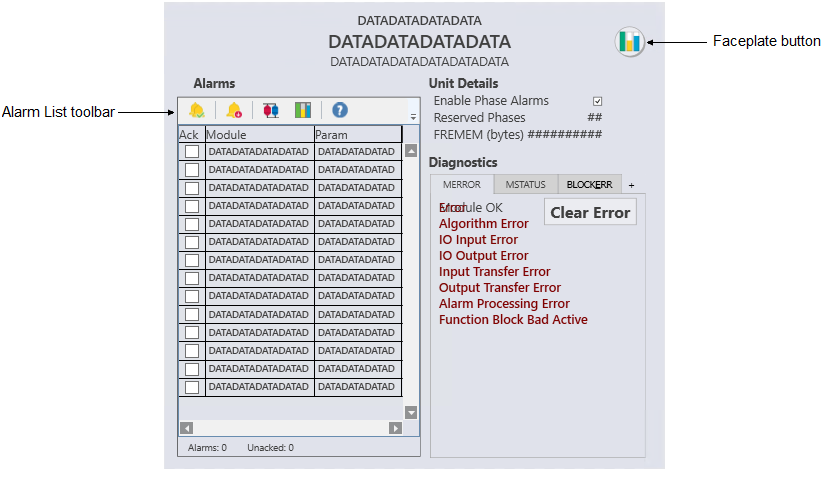
The UM_dt is used with unit modules. The following sections describe the major components that are present on the UM_dt.
- Faceplate button
- Opens the module faceplate display.
- Alarms
-
- Alarm List toolbar
- By default, the alarm list toolbar contains the following buttons
Icon Description 
Acknowledges all visible alarms 
Shelves the alarms 
Opens the primary control display 
Opens the faceplate display 
Opens the alarm help - Alarm List
-
Provides a condensed version of an alarm summary and scrollable list of the module's current active alarms.
- Ack column --> Shows the state of the alarm, which is
represented by one of the following symbols:
Alarm state Ack column Active/unacked Empty field Active/acked Check mark Inactive/unacked Empty box - Module/Param columns --> Shows the module name and parameter name, respectively. The text and colors are as configured for the alarm's current state.
- Help column --> Indicates the type of Alarm Help available
for the corresponding alarm. The column contains one of the following icons:
Icon Description
Alarm Help is enabled. 
Alarm Help is not enabled but the user has the privilege to edit Alarm Help. No icon Alarm Help is not enabled and the user does not have the privilege to edit Alarm Help, or the system does not have a license for alarm help.
- Ack column --> Shows the state of the alarm, which is
represented by one of the following symbols:
- Unit Details
-
- Enable Phase Alarms
- Indicates whether phase alarms are enabled. Select the check box to enable phase alarms; deselect the check box to disable them.
- Reserved Phases
- The number of reserved phases.
- FREMEM
- The amount of the free memory available in the unit.
- Diagnostics
-
- Diagnostics table
- Shows any active conditions in the module's MERROR, MSTATUS, and BLOCK_ERR parameters. Each parameter has its own tab, and the parameter name is underlined on the tab when an active condition exists for that parameter. Click the parameter's tab to see its active conditions. When an error has occurred in the module, a Clear Error button appears on the MERROR tab. Click this button to clear all active errors.