The DeltaV Operate system tree is the main tool for locating files and launching applications. It also provides access to your files and applications during the development of your pictures and schedules.
Depending on your needs, you may want to remove certain applications or folders or add new ones. For example, you may want to add a custom application to the system tree.
You can customize the system tree by modifying the text file SystemTree.CSV. This file defines the folders, applications, and files that appear when you start DeltaV Operate. The file resides in the Local path.
 CAUTION!
Any changes made to the SystemTree.CSV file are done so at your own risk. All changes made to the system tree are permanent. We recommend making a backup copy of the SystemTree.CSV file that, if necessary, can be used to reset the system tree to its default settings.
We recommend using Microsoft Excel when editing the SystemTree.CSV file. When saving the file in Excel, be sure to save it with a .CSV extension. If prompted to save the file in Microsoft Excel Workbook format, select No. If the SystemTree.CSV file is saved incorrectly, the system may not be usable. When editing the file, you must use a comma (,) as the list separator. Other characters, such as the international list separator (;) cannot be used as the list separator in the SystemTree.CSV file. To view or modify the list separator setting on your system, double-click the Regional and Language Options icon in the Control Panel. Drill down to the Numbers tab on the Customize Regional Options dialog.
The SystemTree.CSV file is divided into two sections. The top section defines the folders in the system tree and the bottom section defines the files. Within each of these sections are attributes that determine how a folder or file appears in the system tree. For example, the Key field contains the name of the file or folder as it appears in the system tree, and the Key Type field defines whether it is a folder or file. The remaining attributes have Entry and Value fields. The Entry field holds the name of the attribute and the Value field defines the corresponding attribute value. The attributes for folders and files are defined in the tables entitled "Folder Attributes" and "File Attributes" in the following two topics.
Although not all of the attributes in this file need to be defined, it is important to note that if the Entry field is completed for an attribute, the corresponding Value field must also be completed.
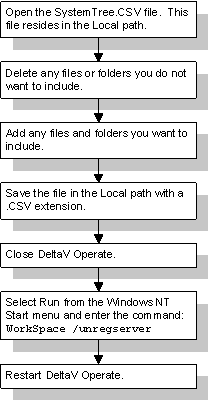
When you are ready to customize the SystemTree.CSV file, refer to the following figure for an overview of the required steps.