The following figure shows the common items that can appear on faceplates and detail display windows. These items are not called out or explained in individual faceplate and detail display topics unless required for clarity.
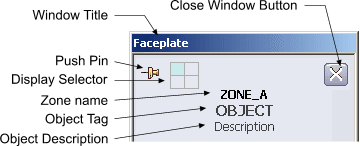
The following list explains these items and the conditions under which they appear:
-
Window Title — The text that can appear is:
-
Push Pin — The push pin appears if your system is configured to use multiple faceplates. The push pin does not appear on detail displays. Click the pin and the pin changes to indicate that this window does not close if you open another window of the same type.
-
Display Selector — This icon appears on faceplates and detail displays in systems with multiple monitors. Each square of the icon represents a monitor. The layout of the squares reflects the configured layout of the multiple monitors.
-
Close Window Button — This button appears on all faceplates and detail displays. Click this button to close the window.
-
Zone Name — If the faceplate or detail display contains an object in another zone, the zone name appears here.
-
Object Tag — This is the DeltaV database tag for the object being displayed. For function block faceplates and detail displays the tag is in the form Module/Block. For all other items only the object tag appears.
-
Object Description — The configured description for the object. Function blocks do not have descriptions so only other object type faceplates and detail displays contain descriptions. Descriptions longer than 24 characters are truncated to 24 characters.
The relative position and orientation of these items may vary depending on the type of object and whether you are viewing a detail display or faceplate.
Faceplate alarm lists contain a Help column as shown in the figure.

This column appears only if DeltaV Alarm Help is licensed on this node. The icon that appears depends on whether Alarm Help is enabled for an alarm and has been configured. For more information see DeltaV Alarm help.