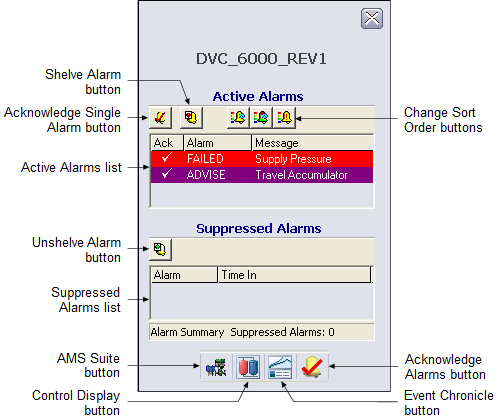
You can open the fieldbus device alarm faceplate in DeltaV Operate run mode by clicking a device alarm button in the Alarm Banner or clicking the Open Faceplate button on the Toolbar and typing the device tag.
The following items are contained in the fieldbus device alarm faceplate:
-
Active Alarms list - Contains the currently active alarms along with the alarm message and an indicator that shows if the alarm has been acknowledged.
-
Suppressed Alarms list - Contains the alarms that are currently suppressed along with the time they were suppressed.
-
Shelve Alarm button - Moves the alarm currently selected in the Active Alarm list to the Suppressed Alarm list.
-
Unshelve Alarm button - Moves the alarm currently selected in the Suppressed Alarm list to the Active Alarm list.
-
Acknowledge Single Alarm button - Acknowledges the currently selected alarm in the Active Alarm list.
-
Change Sort Order buttons - Click a button to sort the alarm list. The choices, from left to right, are:
-
Toolbar - Click a button to perform a task. The choices, from left to right, are:
-
Detail Display button: open the detail display for the device.
-
AMS Suite button: open the AMS Device Manager Status screen for the device (AMS Device Manager license required).
-
Primary Control Display button: open the primary control display.
-
Event Chronicle button: open the Process History Viewer.
-
Acknowledge Alarms button: acknowledge all alarms in the device.
-