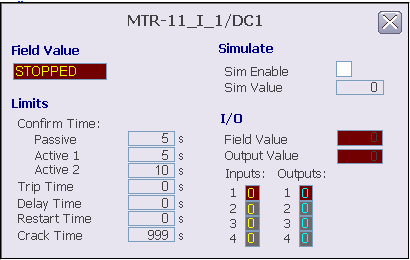
The following items are contained in the Device Control function block detail display:
-
Field Value - This text field contains the state name (FV_D) that corresponds to the discrete input pattern being read from the field.
-
Limits/Confirm Time:
-
Passive - This field displays the time, in seconds, allowed for the discrete device to confirm (through discrete inputs) transition to the passive state from any other state before a fail condition occurs. Click this field to enter the time.
-
Active 1 - This field displays the time, in seconds, allowed for the discrete device to confirm (through discrete inputs) transition to the active 1 state from any other state before a fail condition occurs. Click this field to enter the time.
-
Active 2 - This field displays the time, in seconds, allowed for the discrete device to confirm (through discrete inputs) transition to the active 2 state from any other state before a fail condition occurs. Click this field to enter the time.
-
Trip Time - This field displays the maximum time period that a loss of confirmation from the device can exist before the device is considered to have tripped and a transition to the passive state is initiated. This value is only applicable when the trip option is enabled in DEVICE_OPTS in the Device Control block. If this time is exceeded, a fail condition is generated. Click this field to enter the time.
-
Delay Time - This field displays the time that a change in SP_D to an active state is delayed before the corresponding discrete output pattern is written to the outputs. Click this field to enter the time.
-
Restart Time - This field displays the time that OUT_D is held in the passive state when transitioning from one active state to another before it is driven to the new active state. Click this field to enter the time.
-
Crack Time - This field displays the time allowed for a change in confirmation of the state being left. If this time is exceeded, a fail condition is generated. Crack time can be used to detect whether a valve with a long travel time has begun to move to a new position so that faster alarm condition detection is possible. Typically, crack time is set shorter than the confirm times for a valve but longer than those for a motor. Click this field to enter the time.
-
-
Simulate:
-
Sim Enable check box - This check box is used to enable or disable the use of Sim Value. When the check box is selected, the simulate value is used as the confirm state.
-
Sim Value - This value is used as the integer form of the confirm state rather than the calculated FV_D when simulate is enabled. Click this field to enter the value. The valid input range for this integer value is 0 to 255.
NoteEnter only the following values when in simulated state: 0 (PASSIVE), 1 (ACTIVE 1), 2 (ACTIVE 2), and 255 (undefined).
-
-
I/O:
-
I/O Field Value - This field indicates the integer value (FV_D) that corresponds to the discrete input pattern being read from the field inputs. The values 0, 1, and 2 correspond to defined states (PASSIVE, ACTIVE 1, and ACTIVE 2, respectively) for the field device, with 255 indicating an undefined state.
-
Output Value - This field indicates the integer output state value (OUT_D). The discrete output pattern is generated from the output state value. The output value can be 0, 1, or 2, corresponding to the device's PASSIVE, ACTIVE 1, and ACTIVE 2 states, respectively.
-
Inputs - This area indicates the raw discrete inputs for the Device Control block, displayed in yellow. The background color changes from gray to orange or red when the PV status becomes uncertain or bad, respectively.
-
Outputs - This area indicates the driven discrete outputs for the Device Control block, displayed in cyan. The background color changes from gray to orange or red when the PV status becomes uncertain or bad, respectively.
-