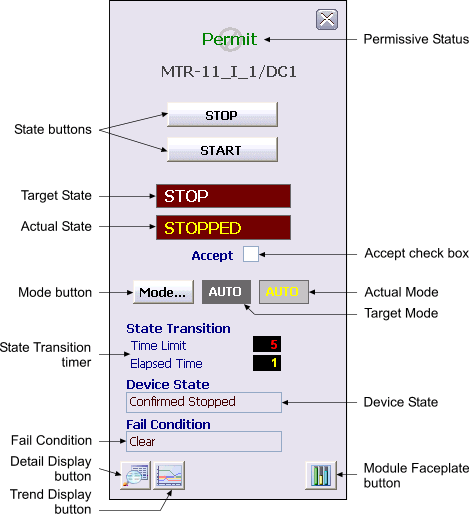
The following items are contained in the Device Control function block faceplate:
-
Permissive Status – When the Permissive option in the DEVICE_OPTS parameter of the Device Control block is set, permissive status is displayed between the Position and Close buttons. When PERMISSIVE_D is True, the word Permit is displayed in green. When False, Permit is displayed in dark red with a No symbol (Ø) overlaid.
-
Tag name - Tag name of module that uses this faceplate.
-
State buttons – Depending on the type of discrete device being controlled, there are either two or three state buttons, each labeled with a text description of its corresponding state. Click one of these buttons to set the target state (SP_D of the Device Control block) to the state described on the button when the state is permitted.
-
Target State – This area indicates the current target state (SP_D) in white text.
-
Actual State – This area indicates the actual state (PV_D) of the Device Control block in yellow text.
-
Accept check box – This check box is used to toggle the ACCEPT_D parameter in the Device Control block. When Accept is checked, the actual state (PV_D) is set to that of the output state (OUT_D), regardless of the discrete input states that determine FV_D.
-
CAS/AUTO buttons – These buttons are used to set the target mode to the labeled value of CAS or AUTO. The buttons for CAS (not displayed in the figure) and AUTO mode are displayed when CAS is a permitted mode. When CAS is not permitted, neither of these buttons is displayed.
-
Mode button – This button displays a list of available target modes. Click one of the permitted modes to set the target mode to that mode. Click the X button to close the mode selector box.
-
Target Mode – This field contains a word in white text that describes the target mode for the loop. The background changes to blue when the target mode and normal mode are different.
-
Actual Mode – This field contains a word in yellow text that describes the ACTUAL mode of the loop. The background changes to blue when the actual mode and normal mode are different.
-
State Transition timer – The value shown for Time Limit is the confirm time for the current setpoint of the Device Control block (for example, CFM_PASS_TIME when SP_D is passive). The Elapsed Time value is the transition timer that begins to increment when the outputs are driven as a result of a change in SP_D.
-
Device State – This field records the current state of the DC_STATE parameter in the Device Control block. When the device state is Locked, a reset button is visible in the text box.
-
Fail Condition – This field records the current state of the FAIL parameter in the Device Control block.
-
Detail Display button – This button is used to open the detail display for the Device Control block.
-
Trend Display button – This button is used to open the trend display for the Device Control block. A trend display is a popup picture that shows a one second trend trace for each of the module's main operating parameters. The trend traces start when the picture is opened and stop when it is closed.
-
Module Faceplate button - This button is used to open the module faceplate display.