Stacking Objects
One of the most powerful features in DeltaV Operate is the ability to easily create complex objects from simple ones. Because DeltaV Operate uses object-oriented graphics in an open picture environment, you have the flexibility to develop more intuitive pictures with a few clicks of the mouse.
Stacking allows you to place one object on top of another so that it forms a more complex, multi-dimensional figure.
It is an effective method for taking simple, existing objects and forming more intuitive ones. For example, by stacking two ovals and two rectangles, you can create a picture that resembles a pump, as depicted in the following figure.
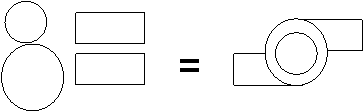
To form more precise connections, such as the two rectangles meeting flush with the edge of the outside circle in the figure above, try nudging the object exactly where you want it. For more information on moving objects and nudging, refer to Moving Objects in the Performing Basic Functions with Objects topic.
You can stack as many objects as you want. The object on top does not have to cover the other object completely and does not alter its properties.
Bringing to Front and Sending to Back
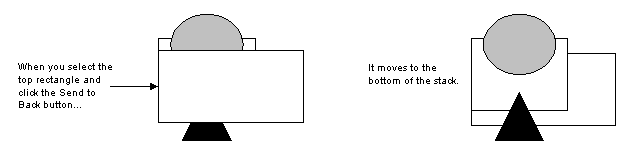
When you initially draw multiple objects, the object that appears on top is always the last one drawn. However, you can change the order of objects in a stack with the Send to Back and Bring to Front buttons. The following figure illustrates this concept.
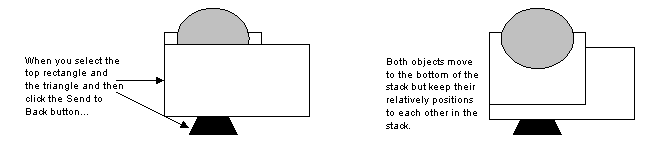
You can move multiple objects in a stack so that they keep their relative position to each other, as the following figure shows.
Making Multiple Objects the Same Size
When you create multiple objects in a picture, you can easily resize one or more of the objects to match the size of another resized object. For example, lets say you add an oval to your picture. Next, you add a rectangle, and then you manually resize the rectangle. You can make the oval the same size as the rectangle by selecting both objects and using the Make Same Size function. By default, Make Same Size resizes the objects in the picture according to the most recently modified object's dimensions. If you want to resize objects using the dimensions of any other object, you must select that object and resize it first.
Layering and Visibility
Layering objects is a powerful way to control specific objects in a complex picture or process. One of the most common uses for layering is when you are developing large displays, and you want your operators to be able to easily distinguish specific parts of the picture. By assigning a layer or multiple layers to objects in the picture, you determine which objects within the picture are visible to the operator. Further, layers are an effective security feature in that you can turn off a specific layer so that certain objects cannot be viewed by one or a set of operators.
You can establish layering using the Set Layer and Display Layers buttons on the Tools toolbar. Setting a layer assigns a layer to a selected object. Displaying layers, on the other hand, applies to the entire picture, and determines what layers are displayed in your picture.
The following illustration shows two objects, Oval1 and Rect1, added to a picture.
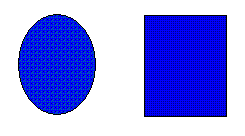
Next, layers are assigned to the objects as follows:
Then, display layers are set to 1. The following figure shows what is displayed based on the layering that was assigned.
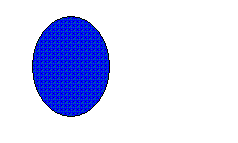
Next, the same objects are grouped, and layers are assigned to the objects as follows:
-
The object Oval1 is set with a layer of 1.
-
The object Rect1 is set with a layer of 2.
-
The grouped object Group1 is set with a layer of 1.
Then, display layers are set to 1. The grouped object is displayed, including one of its member objects (the oval).
Layers are controlled by the LayerName property, which can be animated using the Misc tab in the Animations dialog box, or by writing VBA scripts. In addition to the examples cited above, you can also effectuate the layering function in the run-time environment. After assigning layers to a set of objects, the objects appear at run-time according to the layering you have set.
What appears on your screen, whether you are in the configuration or run-time environments, is determined by the Visible property. However, this is only true if the layer assigned to that object is displayed. For example, if you assign the Visible property for an object to True, but that object does not appear in your picture, it is probably because the object is assigned to a layer that is not displayed (the LayerName property takes precedence over the Visible property).
You can also set conditions for the Visible property using the Visibility Expert. This Expert lets you assign a data source to the property, or create an expression using conditional values and relational operators. To use the Visibility Expert, click the Visibility Expert button on the Experts toolbar or the Toolbox, if enabled. For help on the Expert fields, click the Help button on the Expert.
Grouping and Ungrouping Objects
You can group objects together to create a new single object. This is called a group, or grouped object. A grouped object is like having a rubber band around your picture that contains all the objects you grouped together.
The power of grouped objects is that they let you create custom objects which you can reuse without building new ones from scratch. Like other objects, grouped objects have properties you can modify and control. You can manipulate a group as an object while maintaining individual object properties and animations. However, grouped objects do not need to be permanent. You can always destroy a grouped object by ungrouping it. When you ungroup it, the rubber band containing the objects in the group is deleted, but the member objects are not.
Nesting Grouped Objects
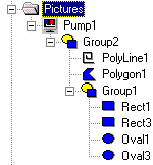
You can nest a group inside another group. For example, you can create a pump from a group of rectangles and ovals and group them. When you group these objects, DeltaV Operate adds a group name (Group 1) to the system tree for the group object and lists the individual objects that comprise the group one level down from the group name. The following figure illustrates this concept.
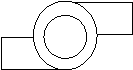
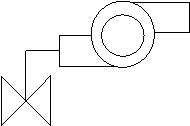
If you draw a valve and group it with the pump, another object (Group 2) is created which contains the first group (the pump) and the objects used to create the valve, as the following figure shows.
Excessive nesting of grouped objects (for example, using 6 layers of nesting) may cause temporary increased CPU usage (of up to 100%) of workspace.exe in configure mode.
Editing Grouped Objects
Once you create a grouped object, you can manipulate it like any other individual object, including moving, cutting, copying, and resizing it. Keep in mind, however, that when you ungroup an object, any changes you make to it affect the member objects. For example, if you resize a group before you ungroup it, you resize each individual object in the group.
Changing a group's animations, however, does not affect the member objects when you ungroup. To change the properties of individual objects, you must drill down into the group to select the object you want, without ungrouping the object.
Drilling Down into a Group
Drilling down allows you to meticulously control complex grouped objects. To drill down, select Enter DrillDown from the object pop-up menu and select the object in the group that you want to change. You can also hold down the shift key and click the object in the group that you want to change. Drilling down also lets you change the order in which the objects are stacked within the group.
For example, suppose you want to change the color and size of the polygon (the valve) in the following figure.
One way to do this would be to ungroup, make changes to the polygon, and regroup the objects. However, this can be tedious and time-consuming, particularly if you have many objects in the group that you need to change. In addition, if the group contains animations or scripts, the animation settings and the scripts are destroyed when you ungroup the object.
A more effective way to modify the polygon is to drill down into the group and make changes without ungrouping. This approach saves time because you don't have to ungroup and then regroup, and consequently you preserve any animations or scripts you have assigned to the group.
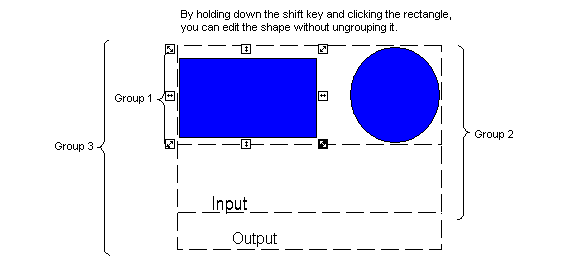
When you drill down into a group to change an object, a box of dashed lines appear around the group. Any additional groups will also display a dashed line box. To change only a specific object in a group, first select the group that contains that object. Then right-click the group and select Enter DrillDown from the pop-up menu. Now you can select the object you want. You can also hold down the shift key and click the object in the group that you want to select, as the following figure illustrates.