The Key Macro Editor provides the tools necessary to manage and refine key macros. You can use these tools to:
-
Create Global Key Macros.
-
Automatically Save the User.fxg when navigating.
-
Delete a key macro.
-
Delete all key macros for an object, picture, or user global.
-
Export all key macros in the selected object, picture, or user global page to a .CSV file.
In addition, you can also manage key macros in DeltaV Operate by:
-
Copying and pasting key macros from one object to another object.
-
Copying and pasting key macros from one picture to another picture.
-
Copying and pasting an object containing key macros.
Determining if an Object, Picture, or User Global Contains a Key Macro
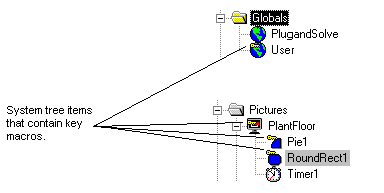
If an object, picture, or user global contains a key macro, it is identified by a key at the top left-hand corner of the icon in the system tree. See the following figure for an example.
Overriding Shortcuts in Run Time
Key macros override shortcut keys that you can normally use in DeltaV Operate's run-time environment. For example, you can override the shortcut of Ctrl+O to open a picture with a key macro that does another function when you select Ctrl+O. You can also disable a shortcut by creating an empty key macro. For example, if you don't want to give operators the ability to open pictures, you create an empty key macro for the Ctrl+O key combination. This disables the action for the key combination, not the key macro itself. So, when the operator presses Ctrl+O, nothing happens.
To create an empty key macro in the Key Macro Editor, you select Custom in the Action drop-down. This functionality is different from the VBA Key Up/Key Down events that only have access to key combinations not used by DeltaV Operate.
Tips and Tricks for Using Key Macros
Some of the additional functionality provided with key macros include:
-
Right-click on an object or picture from the system tree or drawing area, or right-click the user global page from the system tree to display a menu with the Key Macros option.
NoteThe Key Macros option is not available in the right-click menu for variable, timer, or event objects.
-
Determine if an object, picture, or user global contains a key macro by looking at the System Tree.
-
Search and replace for a key macro within a picture.
-
Search and replace for a key macro within a user global.
-
Copy all key macros for an object.
-
Key macros are object-based, as well as picture-based and global-based.
-
The Key Macro Apply To field allows you to select a user global by clicking the Global Key Macros button. If you add a key macro to a user global page (User.fxg file), the key macro is available to all displays.
-
You can use the F10 key for key macros.
-
Key macros are only functional in the run-time environment.
-
Key macros are saved with pictures and the user file (User.fxg).
-
If you copy and paste an object that contains key macros, the key macros are copied and pasted along with the object.