Creating and manipulating objects in DeltaV Operate may often require more than cutting and pasting or moving static objects around the screen. Although these are necessary functions, there are many advanced functions that you can perform when developing or modifying your pictures or working with specific objects.
Resizing Objects
Objects other than lines, arcs, chords, and pies are automatically added with resize handles, and the default operation available through their pop-up menu is Resize. Any object can be resized, including those with points. However, for lines, arcs, chords, and pies, you must select Resize from the pop-up menu; it is not selected automatically. When you resize an object, the object changes shape uniformly, without changing its shape.
To resize an object, simply select the object and click and drag one of its handles.
Rotating Objects
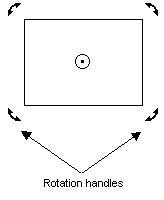
Objects naturally rotate around a center of rotation, designated by a dot enclosed with a circle. When you select Rotate from an object's pop-up menu, the object displays its center of rotation, and rotation handles showing the direction you can rotate the object. See the following figure.
To rotate an object around its center of rotation, click and drag one of the object's rotation handles. You can also rotate an object using the Rotate Expert, which allows you to specify minimum and maximum angles of rotation. To use the Expert, click the Rotate Expert from the Expert toolbar or the Toolbox, if enabled. For help on the fields of the Expert, click the Help button.
DeltaV Operate also lets you rotate objects based on a selected center of rotation. To change the center of rotation, click and drag the default center of rotation to the desired location in the picture. When you place the cursor over the center of rotation, the cursor becomes a crosshair. Now when you click and drag one of the object's handles, the object rotates around the new center of rotation. This is illustrated in the following figure.
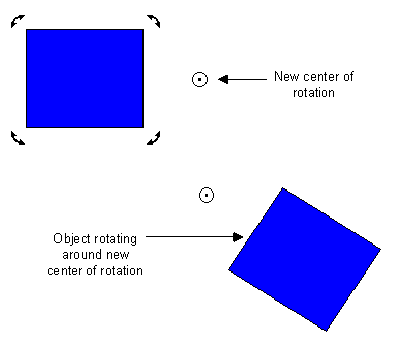
To relocate the object's default center of rotation, click the current center of rotation. The cursor becomes a crosshair, and another crosshair appears at the object's center. Move the center of rotation over the crosshair inside the object.
You can rotate any object except ovals, rounded rectangles, and charts.
You can resize or rotate an object by animating it. For more information on animating an object, refer to Animating Object Properties .
Manipulating Objects with Points
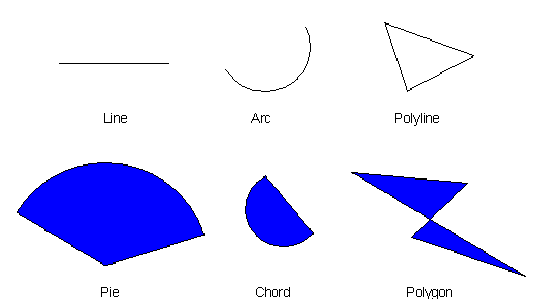
Some objects work a little differently than shapes such as rectangles and ovals, because they consist of a series of connected points. Objects with points include polygons, polylines, lines, arcs, chords, and pie shapes. The following figure illustrates the various types of objects with points.
Reshaping Objects
When you create an object that consists of points, the object is added to your picture with reshape handles, and the default operation available through the pop-up menu is Reshape. The following figure illustrates an object with reshape handles. For polygons and polylines, objects are added with resize handles, because you do not need reshape handles in order to reshape these objects. You can move the points in the object to reshape the object at 15-degree increments.
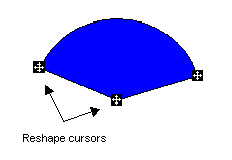
For lines, arcs, chords, and pies, you can reshape the object by clicking and dragging a reshape cursor on the object.
Adding and Deleting Points in Polygons and Polylines
To reshape polygons and polylines, you add points to or delete points from the shape. When you add a point, the cursor changes to a circle with a plus sign inside. If the cursor is black, you can add a point to the polygon or polyline. If the cursor is white, you cannot, because the cursor is not close enough to the object's edge. Move the cursor closer until it turns black or becomes partially black, as the following figure shows.
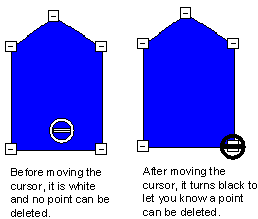
Adding and deleting points can be performed using a circular cursor. A plus sign inside the circle indicates that you are adding a point; a minus sign in the circle indicates that you are deleting a point.
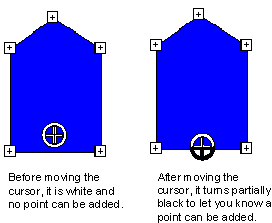
After you add a point, all the points in the object are displayed as small plus signs. You can click any of these plus signs and drag the mouse to adjust the size or position of the point it represents. This, in turn, changes the overall shape of the object.
Deleting a point is similar to adding a point, except the cursor changes to a circle with a minus sign inside. A black cursor means you can delete a point; a white cursor means you cannot. When the cursor is white, move it over the point you want to delete until it turns black. You can then delete that point. See the following figure.
Coloring and Styling Objects
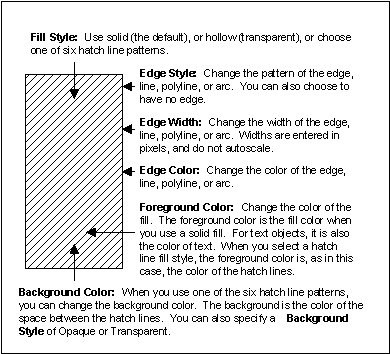
Depending on the object you are working with, you can apply one or more of the following color and style properties to that object:
The relationship of these properties is depicted in the following figure.
The following table shows the color and style properties that can be changed for each object that you can add to a picture.
|
Rectangle |
* |
* |
* |
* |
* |
* |
* |
|
Rounded Rectangle |
* |
* |
* |
* |
* |
* |
* |
|
Arc |
* |
* |
* |
||||
|
Oval |
* |
* |
* |
* |
* |
* |
* |
|
Line |
* |
* |
* |
||||
|
Polygon |
* |
* |
* |
* |
* |
* |
* |
|
Polyline |
* |
* |
* |
||||
|
Chord |
* |
* |
* |
* |
* |
* |
* |
|
Pie |
* |
* |
* |
* |
* |
* |
* |
|
Text |
* |
* |
* |
* |
* |
* |
* |
|
Charts |
* |
* |
* |
* |
|||
|
Current Time |
* |
* |
* |
* |
* |
* |
* |
|
Current Date |
* |
* |
* |
* |
* |
* |
* |
|
Bitmaps |
* |
* |
|||||
|
Data Link |
* |
* |
* |
* |
* |
* |
* |
|
Alarm Summary |
|||||||
|
Push Button |
|||||||
|
Variable Object |
|||||||
|
OLE Object |
* |
* |
* |
* |
* |
* |
* |
|
Timer Object |
|||||||
|
Event Object |
If you apply an edge style other than solid, and then change the edge width to a value greater than 1, the edge style will not appear as defined in the Properties Window. This is because Windows does not permit edge styles to be applied to edge widths greater than 1. Therefore, make sure your edge widths are no greater than 1 for lines that are not solid.
Selecting Object Color and Style Properties
To select or change object properties for a shape, select the shape and do one of the following:
-
Select a property from the object's pop-up menu.
-
Select the object and then select the property from the Object menu.
-
Select a property from the Shape Preferences dialog box.
-
Change a property value in the Properties Window.
-
Animate the object.
To set a property using the object pop-up menu, right-click the object in the picture (or by clicking the name in the system tree) and select the property from the pop-up menu. For more information on the pop-up menu and the options you have for each property, refer to Context Menu for Objects in the topic Basic Drawing Tools.
Depending on the object you are working with, specific property options are also available under the Object menu. To access these properties, select the object, and then select the appropriate property from the Object menu. When you do not have an object selected, the Object menu is disabled.
The following table lists the properties that are available from the Shape Preferences tabbed page on the User Preferences dialog box. This dialog box displays the default property value for new objects, unless that value is changed by any of the means outlined in this section.
|
Color |
Applies color properties to objects. |
For more information on selecting colors, refer to Working with Color in the Designing Your Pictures topic. |
|
Font |
Applies a font to text. |
For more information on selecting colors, refer to Adding Text in the Adding Objects to Pictures topic. |
|
Edge Style |
Applies an edge style to lines in objects. |
|
|
Edge Width |
Applies an edge width to lines in objects. |
Any width, entered in pixels. Note Note Edge widths do not autoscale. |
|
Fill Style |
Applies a fill style to shapes. |
|
|
Hit Test Size |
With Click and Stick enabled, determines the minimum distance the cursor can be from a shape before the shape can be selected (known as a hit test). |
Any logical units. |
|
Background Style |
Applies a background style to objects. |
For more information on selecting properties using the Properties Window, refer to Controlling Object Properties. You can also dynamically change the color, fill, and edge styles of an object by animating it. For more information on animations, refer to Animating Object Properties.
Aligning Objects
To help create and maintain attractive pictures, you can align objects to a grid or in relation to each other. The following sections show you how to align objects in your pictures.
Aligning Objects to the Grid
Each picture maintains an invisible grid that you can use to align objects precisely as you create them. By enabling the Snap to Grid function, you can align objects with minimal effort, as objects stick (or snap) to the nearest grid point. When this function is disabled, you can align objects visually by displaying the grid and moving objects with the mouse, or by selecting the object you want to snap to a grid point and selecting Snap Objects to Grid from the Format menu.
When you display the grid, an evenly-spaced array of dots appear in the background of the picture. These dots represent the intersection of the grid lines, measured in pixels.
The Grid Settings dialog box lets you quickly set your options for using a grid. You can elect to show the grid, enable the Snap to Grid function, and define the grid's spacing using this dialog box. You can also select Snap to Grid from the Format menu, without using the Grid Settings dialog box. If enabled, the Snap to Grid function works whether or not you display the grid. To disable Snap to Grid, deselect the Snap to Grid check box on the Grid Settings dialog box.
If enabled, the Snap to Grid function works whether or not you display the grid. To disable Snap to Grid, deselect the Snap to Grid check box on the Grid Settings dialog box.
Default settings for Grid Enable and Snap to Grid can be entered in the Picture Preferences tabbed page of the User Preferences dialog box.
Snap to Grid does not work by nudging objects. You must use the mouse.
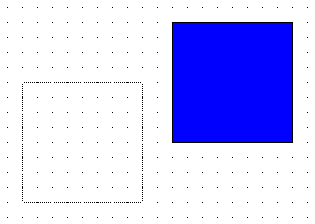
The following illustration shows an object moved with the grid displayed and Snap to Grid enabled. The box to the lower left shows the outline of the object as it is being moved to that position. Notice that the object sticks to the grid points.
Aligning Objects to Each Other
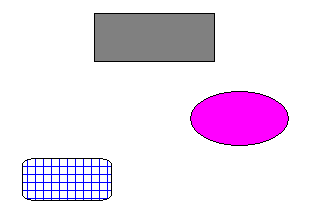
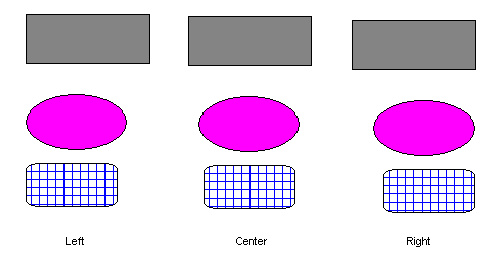
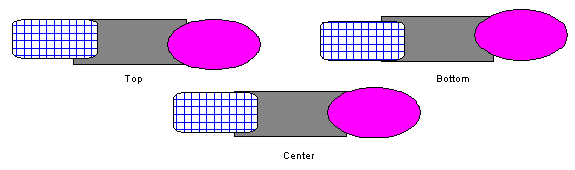
You can also align two or more objects in relation to each other using the Align buttons on the Tools toolbar or the Toolbox, if enabled. When using these buttons, you can vertically align the top, bottom, or center of the objects and horizontally align the left, right, or center of the objects, as the following figure shows.
Spacing Objects in a Vertical or Horizontal Line
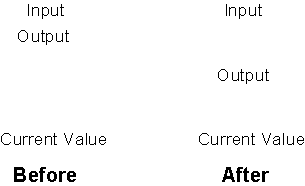
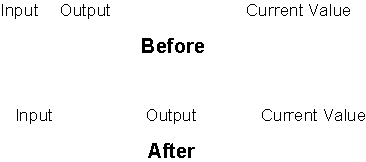
Another way you can align objects is to space them. You can space two or more objects vertically or horizontally with the Space Evenly Vertical and Space Evenly Horizontal buttons on the Tools toolbar. Both methods create an equal amount of spacing between each object; the difference is that vertical spacing creates rows, and horizontal spacing creates columns. Both types of alignment are illustrated in the following figures.
Positioning and Scaling Objects
Another way to align objects in your picture is to position them. Positioning places the object where you want it, based on either relative or absolute alignment and the horizontal or vertical axis. You can position your objects using the Position Expert located on the Experts toolbar or the Toolbox, if enabled. For help on the Expert fields, click the Help button on the Expert.
Alternately, you can scale an object. Scaling actually changes the dimensions of the object's height or width, as you specify. To scale an object, use the Scale Expert located on the Experts toolbar or the Toolbox, if enabled. For help on the Expert fields, click the Help button on the Expert.
Flipping Objects
One simple way to change the way your objects appear in relation to each other is to flip them. When you flip an object, the object reflects along its vertical or horizontal axis and reappears as a mirror image of the original.
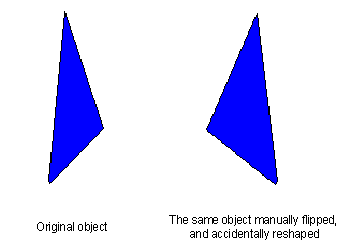
There are two ways to flip an object. You can flip an object simply by dragging a handle of an object from one side to its opposite side. The drawback to this approach is that it also stretches the object. The following figure shows a manually-flipped object that was accidentally reshaped.
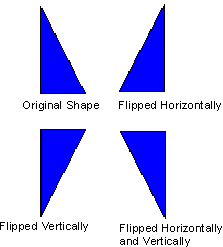
A more effective way to flip an object is to use the Flip Horizontal and Flip Vertical method. This method flips the object while maintaining its original size and shape. The following figure illustrates this effect.