 Use the Toolbar Builder button
from the DeltaV Utilities Toolbar to create toolbars for the operator. Clicking
this button opens the following dialog.
Use the Toolbar Builder button
from the DeltaV Utilities Toolbar to create toolbars for the operator. Clicking
this button opens the following dialog.
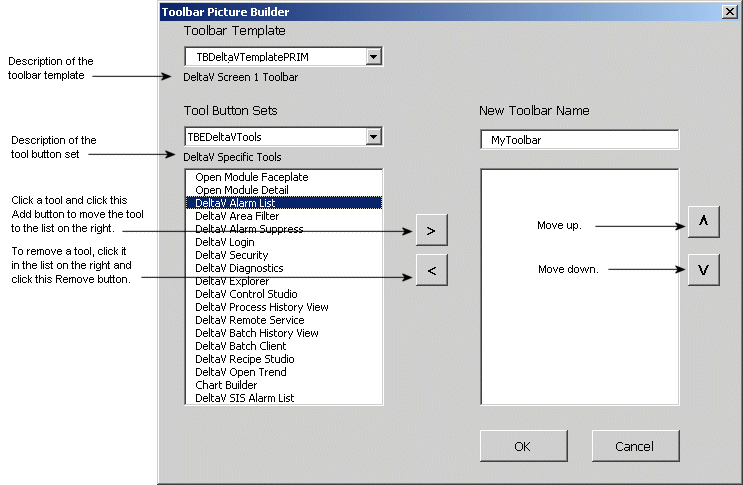
Toolbar Builder Dialog
To create a new operator toolbar
- Click the Toolbar Builder button on the DeltaV Utilities toolbar.
- Give your new toolbar a name.
- Select the toolbar template.
- Pick a toolbar button set from the available sets.
- Select the buttons you want on the operator's toolbar.
- Click the right chevron button to move the selected items to your new toolbar list.
- If necessary, select a new toolbar template or button set.
- Add more buttons to your new toolbar.
- Reorder the buttons on your new toolbar by using the up and down arrows.
- Remove buttons from your new toolbar by selecting the button and clicking the left chevron button.
- Click OK when completed.