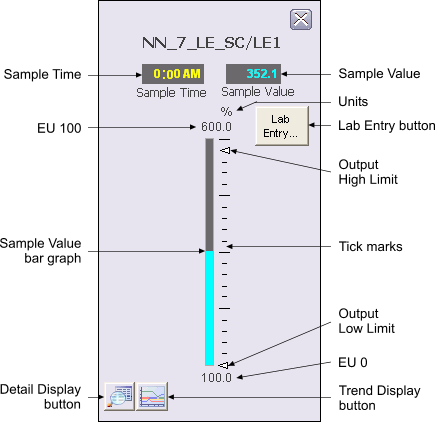
The following items are contained in the Lab Entry function block faceplate:
-
Sample Time – This area displays the time the last sample was taken.
-
Sample Value – This area displays the value of the last sample taken. The background color of the 3-D box changes from gray to orange or red when the status becomes uncertain or bad, respectively.
-
Engineering Units – This is the engineering units description for the Sample Value as defined in the OUT_SCALE parameter.
-
EU 100 – This is the value corresponding to 100% of scale for the Sample Value.
-
Sample Value bar graph – This field indicates the value of OUT, which is the same as the value displayed in the Sample Value display box.
-
Limits – These arrowheads are vertically positioned relative to the Sample Value bar graph to indicate the High and Low Output Limits. Although these arrows cannot be dragged with the mouse, the values they indicate can be modified by using the block's detail display.
-
Tick marks – This vertical arrangement of black lines is used to indicate percentages of Sample Value scale.
-
EU 0 – This area shows the value corresponding to 0% of scale for the Output.
-
Detail Display button – This button opens the detail display for the Lab Entry block.
-
Trend Display button – This button opens the trend display for the Lab Entry block. A trend display is a popup picture that shows a one second trend trace for each of the module's main operating parameters. The trend traces start when the picture is opened and stop when it is closed.