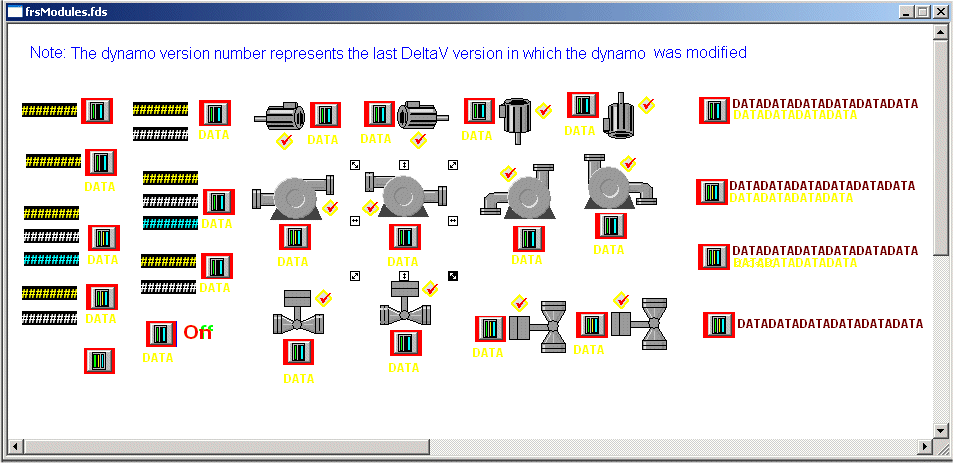
There are three module-based dynamo sets supplied in DeltaV Operate; frsModules, frsModules_Theme, and frsModules_HighPerf.
frsModules dynamo set
The frsModules dynamo set in DeltaV Operate contains the following dynamos, which can be used with modules created from module templates in the library or any module containing a single instance of one of the function blocks supported by that dynamo.
|
Dynamo |
Usage |
|---|---|
|
PID_LOOP_1_ |
Used with PID loop modules templates named PID_LOOP, CASCADE_MASTER, CASCADE_SLAVE, and PID_GAINSCHED. |
|
PID_LOOP_2_ |
Used with PID loop modules templates named PID_LOOP, CASCADE_MASTER, CASCADE_SLAVE, and PID_GAINSCHED. |
|
ANALOG_IN_ |
Used with the monitoring module template ANALOG. |
|
DISCRETE_IN_ |
Used with the monitoring module template DISCRETE. |
|
AALM_ |
Used with the monitoring module template AALARM. |
|
PID_DT_COMP_ |
Used with the PID Deadtime loop module named PID_DEADTIME. |
|
PLM_ |
Used with the Phase Logic Module template for batch processing. |
|
Any_Faceplate_ |
Used with any module in the system. |
|
Continuous_Unit_Faceplate_ |
Used with any unit module that was not derived from a unit class. |
|
Unit_Faceplate_ |
Used with any unit module that was derived from a unit class. |
|
Motor Dynamos DL_MTR_VDWN_ DL_MTR_VUP_ DL_MTR_HL DL_MTR_HR |
Four orientations of motor symbols used with any of the 2-State and 3-state motor module templates. |
|
Pump Dynamos DL_PMP_HLR_ DL_PMP_HRL_ DL_PMP_VLR_ DL_PMP_VRL_ |
Four orientations of pump symbols used with any of the 2-State and 3-state motor module templates. |
|
Valve Dynamos DL_VLV_V_NC_ DL_VLV_H_NC_ DL_VLV_V_NO_ DL_VLV_H_NO_ |
Two orientations of valve symbols used with any of the normally closed and normally opened valve module templates. |
|
Fuzzy Logic Dynamos FLC_LOOP_1 FLC_LOOP_2 |
Used with module template FLC_LOOP. |
frsModules_Theme dynamo set
The frsModules_Theme dynamo set provides dynamos that incorporate spatial orientation and color coordination to improve operator pattern recognition and focus on the important information within the dynamo. The _Theme dynamo set uses the Theme_Colors threshold table (Silver) as the default color theme. You can change the color theme for the dynamo set using the Duplicate color table utility.
Typical operator displays and dynamos rely on operators reading and comparing the process values. For example, operators are commonly shown the SP and PV values for loops. From these values, operators are tasked with determining whether the SP and PV are properly tracking, whether there is a deviation worth addressing and how close to an alarm limit is the PV.
Human factors research shows that reading requires users to focus on each value individually. Operators read the values and calculate the difference in those values one at a time (that is, serially). While focusing on one value, the other values on the screen are ignored. Thus, with only numeric displays, operators must periodically focus on each value and determine whether action is required.
Spatial orientation is also a concept applied to these dynamos. Each dynamo is made up of individual elements. These elements are placed in the same location across all the dynamos where used. For example, alarm indication is in the upper left corner for all of the dynamos and mode indication is always tot he left of the status indication. Consistency of element location creates a fixed spatial location within the dynamo for this related information. This is important because when operators can rely on looking to the same place, the display is less confusing and they can more quickly scan a display to understand what tags are affected.
The colors used within the dynamos were selected based on their impact in attracting operator attention. The order is defined as:
The frsModules_Theme set contains the following dynamos, which can be used with modules created from module templates in the library or any module containing a single instance of one of the function blocks supported by that dynamo. The module can have 0 through the maximum number of alarm types supported by a particular dynamo. The alarms can have any user-defined name.
|
Name |
Function Blocks |
Description |
|---|---|---|
|
AT_VLV_ |
AT |
Contains a control valve and OUT bar graph. The control valve has four (4) orientations. |
|
EDC_PMP_ |
EDC |
Contains a pump that has two (2) orientations. |
|
EDC_VLV_ |
EDC |
Contains a discrete valve that has four (4) orientations. |
|
MA1_CH_ |
PID |
Contains a horizontal combination bar graph; PV and SP fields; and, an OUT bar graph. |
|
MA1_DH_ |
PID |
Contains a horizontal PV-SP deviation bar graph; PV and SP fields; and, an OUT bar graph |
|
MA1_N_ |
PID |
Contains the PV and SP fields; and, an OUT bar graph. |
|
MA1_VLV_ |
PID |
Contains a control valve and OUT bar graph. The control valve has four (4) orientations. |
|
MA2_DH_ |
PID, ALM |
Contains a horizontal PV-SP comparison bar graph and PV Field. |
|
MA2_DV_M_ |
PID, ALM |
Contains a vertical PV-SP comparison bar graph (medium); PV field; and, EU description. |
|
MA2_DV_S_ |
PID, ALM |
Contains a vertical PV-SP comparison bar graph (small); PV field; and, EU description. |
|
MA3_CH_ |
PID, AI, ALM |
Contains a horizontal combination bar graph and the PV field. |
|
MA3_CV_M_ |
PID, AI, ALM |
Contains a vertical combination bar graph (medium); the PV field; and, EU description. |
|
MA3_CV_ML_ |
PID, AI, ALM |
Contains a vertical combination bar graph (medium, level indicator); the PV field; and, EU description. |
|
MA3_CV_S_ |
PID, AI, ALM |
Contains a vertical combination bar graph (small); the PV field; and, EU description. |
|
MA3_CV_SL_ |
PID, AI, ALM |
Contains a vertical combination bar graph (small, level indicator); the PV field; and, EU description. |
|
MA3_N_ |
PID, AI, ALM |
Contains the PV field. |
|
MA3_NML_ |
PID, AI, ALM |
Contains a normalized bar graph. |
|
MD1_PMP_ |
DC |
Contains a pump that has two (2) orientations. |
|
MD1_VLV_ |
DC |
Contains a discrete valve that has four (4) orientations. |
|
Multipoint |
Any |
Contains trends for up to 15 data points on one chart. |
Arrows and display links are also in this dynamo set. The display link dynamos perform a replace picture using the replace picture expert. Operators click on the dynamo and the picture is replaced based on how the link is configured. Refer to the Replace Picture Expert topic for more information on this expert.
The display link dynamos have a click event configured. When one of these dynamos is added to a display, you are prompted to overwrite the existing click event in the picture with the one from the display link dynamo.
|
Name |
Description |
Recommended Theme_Color set |
|---|---|---|
|
ArrowD_DB |
Down-facing arrow in dark blue. |
Dark_Blue, Silver, LIght_Blue, Tan |
|
ArrowD_DG |
Down-facing arrow in dark gray theme. |
Silver, Light_Blue |
|
ArrowD_LB |
Down-facing arrow in light blue theme. |
Dark_Blue |
|
ArrowD_LG |
Down-facing arrow in light gray theme. |
Tan |
|
ArrowL_DB |
Left-facing arrow in dark blue. |
Dark_Blue, Silver, Light_Blue, Tan |
|
ArrowL_DG |
Left-facing arrow in dark gray. |
Silver, Light_Blue |
|
ArrowL_LB |
Left-facing arrow in light blue. |
Dark_Blue |
|
ArrowL_LG |
Left-facing arrow in light gray. |
Tan |
|
ArrowR_DB |
Right-facing arrow in dark blue. |
Dark_Blue, Silver, LIght_Blue, Tan |
|
ArrowR_DG |
Right-facing arrow in dark gray |
Silver, Light_Blue |
|
ArrowR_LB |
Right-facing arrow in light blue. |
Dark_Blue |
|
ArrowR_LG |
Right-facing arrow in light gray. |
Tan |
|
ArrowU_DB |
Up-facing arrow in dark blue. |
Dark_Blue, Silver, Light_Blue, Tan |
|
ArrowU_DG |
Up-facing arrow in dark gray |
Silver, Light_Blue |
|
ArrowU_LB |
Up-facing arrow in light blue. |
Dark_Blue |
|
ArrowU_LG |
Up-facing arrow in light gray. |
Tan |
|
DisplayLink_L_DB |
Left-facing display link in dark blue. |
Dark_Blue, Light_Blue |
|
DisplayLink_L_LB |
Left-facing display link in light blue. |
Silver, Light_Blue |
|
DisplayLink_L_T |
Left-facing display link in tan. |
Tan |
|
DisplayLink_R_DB |
Right-facing display link in dark blue. |
Dark_Blue, Light_Blue |
|
DisplayLink_R_LB |
Right-facing display link in light blue. |
Silver, Light_Blue |
|
DisplayLink_R_T |
Right-facing display link in tan. |
Tan |
The frsModules_Theme dynamo set uses the following naming conventions. Underscores group the letters.
Type of module
Type of bar graph
-
C = combination bar graph
-
D = deviation bar graph
-
N = no bar graph used or an OUT bar graph only
-
NML = normalized bar graph
Orientation of bar graph
Size of bar graph indicator line
-
S = small level indicator on the bar graph
-
M = medium level indicator on the bar graph
-
L = level indicator on the bar graph (useful on a vessel as a level indicator)
Type of equipment
frsModules_HighPerf dynamo set
| Dynamo | Function block | Level |
|---|---|---|
| High Performance Horizontal Analog Bar
(HP_HorizAnalog) |
PID, AI, AO, ALM, MANLD, RTO | 1, 2 |
| High Performance Vertical Analog Bar
(HP_VertAnalog) |
PID, AI, AO, ALM, MANLD, RTO | 1, 2 |
| High Performance Control Valve
(HP_C_Valve) |
PID, MANLD, AO | 1, 2 |
| High Performance Block Valve
(HP_B_Valve) |
DC, EDC | 1, 2 |
| High Performance Pump
(HP_Pump) |
DC, EDC | 1, 2 |
| High Performance Numerical Value
(HP_Numeric) |
PID, AI, AO, ALM, MANLD, RTO | 1, 2 |
| High Performance Unit Alarm Indicator
(HP_Alarms) |
n/a This dynamo is mapped to an Area. |
1, 2 |
| High Performance Radar Plot
(HP_Radar) |
Any | 1, 2 ,3 |
| High Performance Horizontal MultiPoint
HP_HorizMultiPoint |
Any | 1, 2 , 3 |
| High Performance Vertical MultiPoint
HP_VertMultiPoint |
Any | 1, 2 , 3 |
| High Performance AT Valve
(HP_AT_VLV_) |
PID | 3 |
| High Performance EDC Pump
(HP_EDC_PMP_) |
EDC | 3 |
| High Performance EDC Valve
(HP_EDC_VLV_) |
EDC | 3
Per IF #302702 * Title: Changed Mutiline to MultiPoint |
| High Performance MA1_CH_ analog
(HP_MA1_CH_) |
PID | 3 |
| High Performance MA1_DH_ analog
(HP_MA1_DH_) |
PID | 3 |
| High Performance MA1_N_ analog
(HP_MA1_N_) |
PID | 3 |
| High Performance MA1_VLV_ analog
(HP_MA1_VLV_) |
PID | 3 |
| High Performance MA2_DV_M_ analog
(HP_MA2_DV_M_) |
PID, ALM | 3 |
| High Performance MA2_DV_S_ analog
(HP_MA2_DV_S_) |
PID, ALM | 3 |
| High Performance MA3_CH_ analog
(HP_MA3_CH_) |
PID, AI, ALM | 3 |
| High Performance MA3_CV_M_ analog
(HP_MA3_CV_M_) |
PID, AI, ALM | 3 |
| High Performance MA3_CV_ML_ analog
(HP_MA3_CV_ML) |
PID, AI, ALM | 3 |
| High Performance MA3_CV_S_ analog
(HP_MA3_CV_S_) |
PID, AI, ALM | 3 |
| High Performance MA3_CV_SL_ analog
(HP_MA3_CV_SL_) |
PID, AI, ALM | 3 |
| High Performance MA3_N_ analog
(HP_MA3_N_) |
PID, AI, ALM | 3 |
| High Performance MD1_PMP discrete
(HP_MD1_PMP_) |
DC | 3 |
| High Performance MD1_VLV discrete
(HP_MD1_VLV_) |
DC | 3 |
| High Performance SHDI module
(HP_MSHDI_) |
SHDI | 3 |
| High Performance SHDO module
(HP_MSHDO_) |
SHDO | 3 |
Adding an frsModules dynamo to your display
In the configure mode of DeltaV Operate, you can paste these dynamos onto a process graphic display. The first figure below shows the frsModules dynamo set; however, these instructions also apply to the frsModules_Theme set and frsModules_HighPerf set.
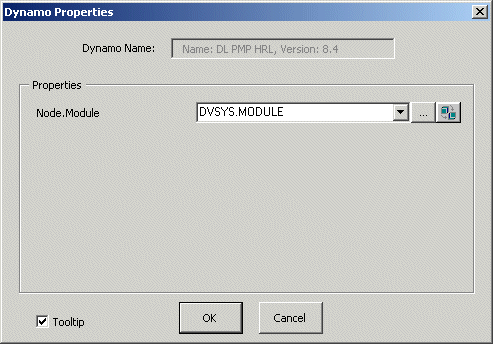
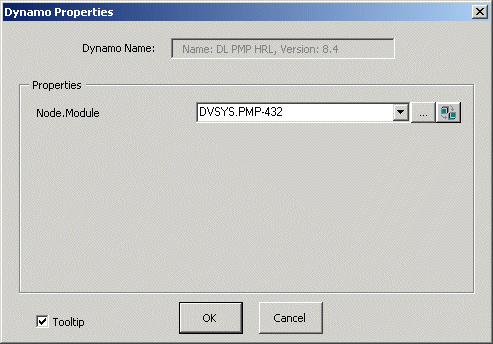
The Dynamo Properties Dialog figure shows the Dynamo Properties dialog that is displayed when one of the pump dynamos is pasted on the process graphic. In the edit box, delete the word MODULE and replace it with the actual tag of the module you created from the module template. Suppose PMP-432 is a module in one of the plant areas you created from the module template MTR-11_ILOCK. The Dynamo Properties Dialog Module Tag figure shows the same dialog box after the module tag PMP-432 has been entered. After you click OK, the dynamo is displayed on the process graphic and all of the data links within it have a path based on the module PMP-432.
You can select the faceplate icon from the pictures folder in DeltaV Operate. This causes the faceplate display that is defined as a property of PMP-432 to pop up. As the faceplate display is opened, the generic data links within it are substituted so all the paths are based on PMP-432. No configuration is necessary for the faceplate displays when the standard DeltaV displays are used.
Some dynamos, such as those in the frsModules_Theme set, display alarm information by entering the name of the module's alarm on the Dynamo Properties dialog. If using one of the applicable library module templates, the default alarm names on the dynamo match the default module template alarm names. If making your own modules or changing the name of a module's alarm, you must enter or change that name on the Dynamo Properties dialog. If your module does not contain any configured alarms, the dynamo will work correctly but without any alarm indication.
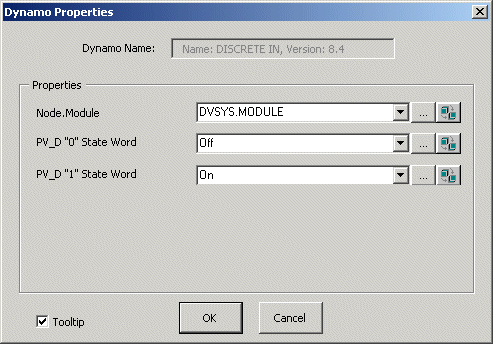
The process of pasting a dynamo from DeltaV Operate is the same for all the dynamos except DISCRETE_IN. When DISCRETE_IN is pasted, the Dynamo Properties dialog box is displayed, as shown in the last figure in this series. In the two edit boxes, enter the On-state and Off-state words associated with the discrete input channel. One of these words is visible (depending on the module's state) when the dynamo is viewed in Operator Interface.
Once a dynamo is on the process display, you can set the background color for blinking. Keep in mind that an unacknowledged alarm blinks in the priority color in DeltaV Operate (in run mode). If you want the alternating blink color to be the background color of your process display, perform the following steps in DeltaV Operate (configure mode):
The frsModules_Theme dynamo set uses an alarm icon and a box surrounding the dynamo to indicate the alarm condition. The frsModules_HighPerf dynamos set uses only an alarm icon to indicate the alarm condition.
-
Select the dynamo on the process display.
-
Right click and select Animations from the context menu to open the Animations dialog.
NoteIf the Basic Animation dialog is selected as the default in User Preferences, click the Configure button in the Additional Animations section to open the Animations dialog.
-
Select the Color tab on the Animations dialog.
-
Select the check box next to Background Color.
-
Click the ellipsis button (...) and pick a color.
-
Click OK again to return to the process graphic.