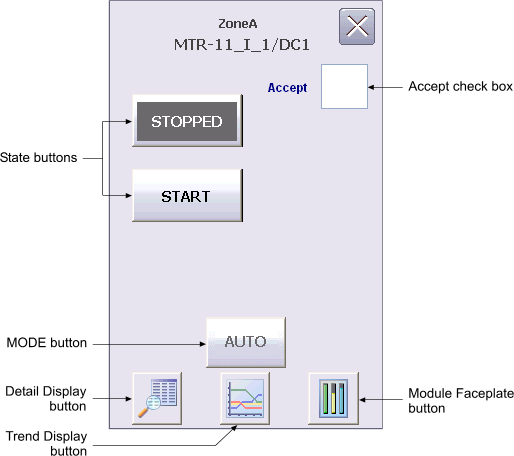
The Device Control Function Block Operator Keyboard faceplate contains the following items:
State buttons – Depending on the type of discrete device being controlled, there are either two or three state buttons, each labeled with a text description of its corresponding state. Click one of these buttons to set the target state (SP_D of the Device Control block) to the state described on the button when the state is permitted.
Mode button – This button displays a list of available target modes. Click one of the permitted modes to set the target mode to that mode. Click the X button to close the mode selector box.
Accept check box – This check box is used to toggle the ACCEPT_D parameter in the Device Control block. When Accept is checked, the actual state (PV_D) is set to that of the output state (OUT_D), regardless of the discrete input states that determine FV_D.
Detail Display button – This button is used to open the detail display for the Device Control block.
Trend Display button – This button is used to open the trend display for the Device Control block. A trend display is a popup picture that shows a one second trend trace for each of the module's main operating parameters. The trend traces start when the picture is opened and stop when it is closed.
Module Faceplate button - This button is used to open the module faceplate display.