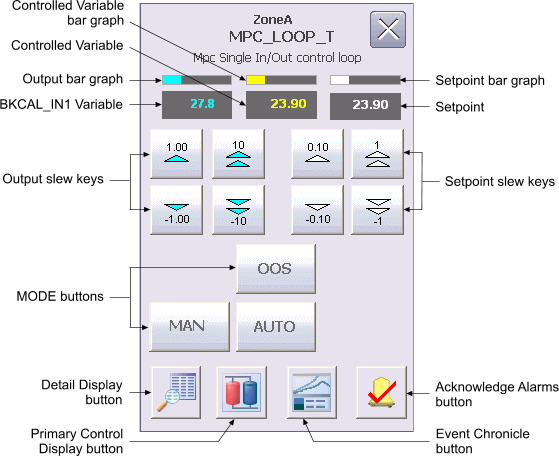
The MPC Loop Operator Keyboard faceplate contains the following items:
Controlled Variable bar graph – This field indicates the value of the controlled variable parameter for the loop, which is the same as the value displayed in the Controlled Variable field.
Controlled Variable - This field displays the CNTRL1 value of the MPC block in yellow. The background color of the field changes from gray to orange or red when the CNTRL1 status becomes uncertain or bad, respectively. The CNTRL1 value is visible in the decimal format provided by CNTRL1_SCALE.DECPT.
Output bar graph - This field indicates the value of the BKCAL_IN1 parameter for the MPC block, which is the same as the value displayed in the BKCAL_IN1 Variable field.
BKCAL_IN1 Variable – This field displays the BKCAL_IN1 value of the MPC block in yellow. The background color of the field changes from gray to orange or red when the BKCAL_IN1 status becomes uncertain or bad, respectively. The BKCAL_IN1 value is visible in the decimal format provided by MNPLT1_SCALE.DECPT.
Output slew keys – These gray buttons with cyan arrowheads appear only when the loop has a target mode of AUTO, MAN, or OOS. Click the corresponding button to increment or decrement the output value by 1 or 10 engineering units.
MODE buttons – These buttons are used to set the target mode of the MPC block. The visibility of these buttons is based on permitted modes of the MPC block. The buttons for AUTO and MAN mode are displayed when the respective mode is a permitted mode.
A gray outline appears around the button if the current mode is the normal mode and the target matches the normal mode. . If the target and actual modes do not match, the label on this button blinks. A blue outline appears around the button if the target mode does not match the normal mode, but the target mode matches the actual mode.
Setpoint bar graph – A bar graph, indicating the value that appears in the Setpoint field.
Setpoint - The Setpoint field displays the SP1 value of the nth Controlled Variable in the MPC block. The background color of this field changes from gray to orange or red when the CNTRL1 status becomes uncertain or bad, respectively. The valid range for the SP value is defined by the engineering unit EU 0 and EU 100 values of CNTRL1_SCALE. Valid input ranges from -10 percent to 110 percent of CNTRL1 scale. The SP value is visible in the decimal format provided by CNTRL1_SCALE.DECPT.
Setpoint slew keys – These gray buttons with white arrowheads appear only when the loop has a target mode of AUTO or MAN. Click the corresponding button to increment or decrement the setpoint value by 1 or 10 engineering units.
Detail Display button – Open the detail display for the device.
Primary Control Display button – Open the primary control display.
Event Chronicle button – Open the Process History Viewer.
Acknowledge Alarms button – Acknowledge all alarms in the device.
Module Error indicator – A flashing blue bar is displayed below the Detail Display button when a module error occurs. This prompts you to go to the detail display to view and clear the error.