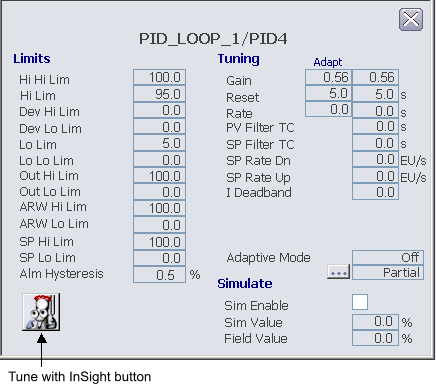
The following items are contained in the PID function block detail display:
-
Tune with InSight button - Press this button to start DeltaV InSight in the context of this block.
-
Limits:
-
Hi Hi Lim - This area displays the maximum value of the PV in engineering units before the high high limit active bit (HI_HI_ACT) is set. Click this field to enter a new limit.
-
Hi Lim - This area displays the maximum value of the PV in engineering units before the high limit active bit (HI_ACT) is set. Click this field to enter a new limit.
-
Dev Hi Lim - This area displays the maximum positive deviation of the PV from SP in engineering units before the high deviation limit active bit (DV_HI_ACT) is set. Click this field to enter a new limit. The valid input range for this value is 0 to + PV span.
-
Dev Lo Lim - This area displays the maximum negative deviation of the PV from SP in engineering units before the low deviation limit active bit (DV_LO_ACT) is set. Click this field to enter a new limit. The valid input range for this value is - PV to 0 span (negative values).
-
Lo Lim - This area displays the minimum value of the PV in engineering units before the low limit active bit (LO_ACT) is set. Click this field to enter a new limit.
-
Lo Lo Lim - This area displays the minimum value of the PV in engineering units before the low low limit active bit (LO_LO_ACT) is set. Click this field to enter a new limit.
-
Out Hi Lim - This area displays the maximum value of the output in engineering units. Click this field to enter a new limit. The valid input range for this value is -10 to 110 % of the output scale in engineering units.
-
Out Lo Lim - This area displays the minimum value of the output in engineering units. Click this field to enter a new limit. The valid input range for this value is -10 to 110 % of the output scale in engineering units.
-
ARW Hi Lim - This field indicates the anti-reset windup high limit value, which must be less than or equal to Out Hi Lim.
-
ARW Lo Lim - This field indicates the anti-reset windup low limit, which must be greater than or equal to Out Lo Lim.
-
SP Hi Lim - This area displays the maximum value of the SP in engineering units. Click this field to enter a new limit. The valid input range for this value is -10 to 110 % of the PV Scale in engineering units.
-
SP Lo Lim - This area displays the minimum value of the SP in engineering units. Click this field to enter a new limit. The valid input range for this value is -10 to 110 % of the PV Scale in engineering units.
-
Alm Hysteresis - This area displays the alarm hysteresis (or deadband) value for the alarm conditions in % of PV Scale. Click this field to enter a new value. An alarm condition does not recur until the PV has backed away from the corresponding limit by at least the % of PV Scale specified by this value.
-
-
Tuning:
-
Gain - This field indicates the gain used in the PID algorithm. Click this field to enter a new value.
-
Reset - This field indicates the integral time constant used in the PID algorithm. Click this field to enter a new value.
-
Rate - This field indicates the derivative time constant used in the PID algorithm. Click this field to enter a new value.
-
PV Filter TC - This field indicates the PV filter time constant in seconds. Click this field to enter a new value.
-
SP Filter TC - This field indicates the SP filter time constant in seconds. Click this field to enter a new value.
-
SP Rate Dn - This field indicates the maximum negative change to the WORKING_SP in engineering units that is allowed per second. Click this field to enter a new value. A value of 0.0 indicates that no rate limiting will be done.
-
SP Rate Up - This field indicates the maximum positive change to the WORKING_SP in engineering units that is allowed per second. Click this field to enter a new value. A value of 0.0 indicates that no rate limiting will be done.
-
IDeadband - The integral deadband. When the error (WORKING_SP minus PV) is less than this value, integral action stops.
-
Bias - The Bias value is visible (in place of IDeadband) when the Structure is PD or P-D.
-
FF Gain - This field indicates the gain used in the feedforward algorithm. Click this field to enter a new value. This field is visible whenever FF_ENABLE is True.
-
Beta - This field indicates the fraction of proportional action taken on error versus PV. The valid input range is 0.00 to 1.00. This field is visible whenever STRUCTURE is set to Two Degrees of Freedom Controller.
-
Gamma - This field indicates the fraction of derivative action taken on error versus PV. The valid input range is 0.00 to 1.00. This field is visible whenever STRUCTURE is set to Two Degrees of Freedom Controller.
-
Adaptive Mode - This area shows the Actual (top value) and Target Adapt mode. Click the ellipsis button to change the Target mode.
-
-
Simulate:
-
Sim Enable - This box is used to enable or disable the simulate value as input to the PID. When the check box is checked, the simulate value is used to calculate the PV value.
-
Sim Value - This area simulates the field value. When simulate is enabled, you can scale the sim value using the Out scale to calculate the PV value. Click the value to enter a new value.
-
Field Value - This field indicates the raw field value. You can scale this value using the PV scale to calculate the PV value when simulate is disabled.
-